How-to

Create and Manage Tiles:

Control Tiles

This is a tile-specific continuation of How-to Create and Manage Tiles.

This section guides users on how to create and manage control tiles.

Note: Controls can modify only live data. When for some reason the data source is not available - DY will provide fall-back cached data computed using default values of control parameters.

Control tiles add interactivity to charts and dashboards. Each project can have multiple control tiles. Each control tile can have one or more controls.

Each control is linked to its own control parameter. By interacting with the control - the user changes the value of the linked control parameter. The control parameters are used in Advanced Data Builder to create dynamic queries.

Within a project - control parameters should have unique alphanumeric names. Underscore (_) can be used as separator between words.

Each control differs by parameter type (numeric, string, boolean, array), and how users interact with it to change the value of the control parameter.  

To add a control tile, click on Edit to switch to the project edit mode.

Then click on +Tile to select from the drop-down menu Control Tile.
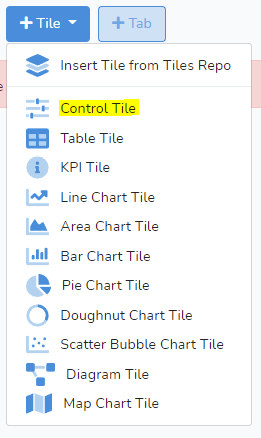
Selecting Control Tile will bring up the window shown below.
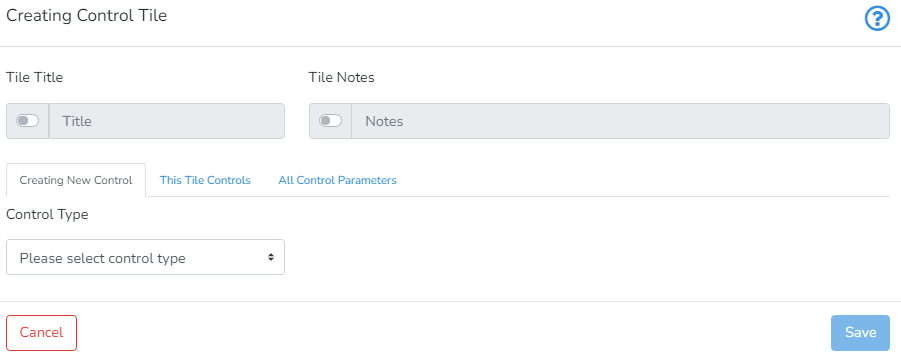
The user can provide Tile Title and Tile Notes (to provide more information for other users or for future reference) by activating the switch on the left side of the respective text box.  

Below the title and notes input, there are three tabs for creating and managing controls: Creating New Control, This Tile Controls, All Control Parameters.

Each individual control tile can accommodate any reasonable number of controls. At the same time, each control can be linked to one or more charts within same project.

This Tile Controls tab lists all controls for the current control tile.

All Control Parameters tab lists all control parameters and their current values present in the entire project. 

To add a new control, the user should select Control Type from the drop-down menu under Creating New Control tab. On selection - control-specific input fields will be shown below the drop-down.

The DataYeet platform supports the following control types:

Horizontal Slider

The horizontal slider is used to control a numeric value limited by minimum and maximum values. A typical example of creating a new horizontal slider is presented below.
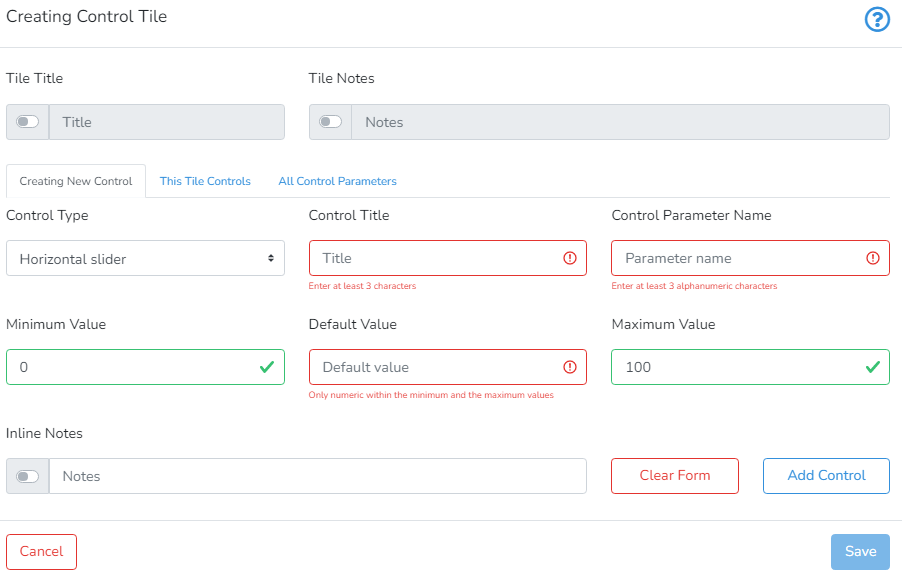
To add a horizontal slider, the user must provide the Control Title, Control Parameter Name, Minumum Value, Default Value, Maximum Value and Inline Notes.

Control Title defines how the control will be visually identified.

Control Parameter Name should be unique within the parent project. Only alphanumeric characters and underscore are allowed.

Minimum Value >= Default Value >= Maximum Value should be ordered integers. 

Inline Notes are optional and their visibility can be toggled with the switch.

After you are done, click Add Control to add the control to the control tile.
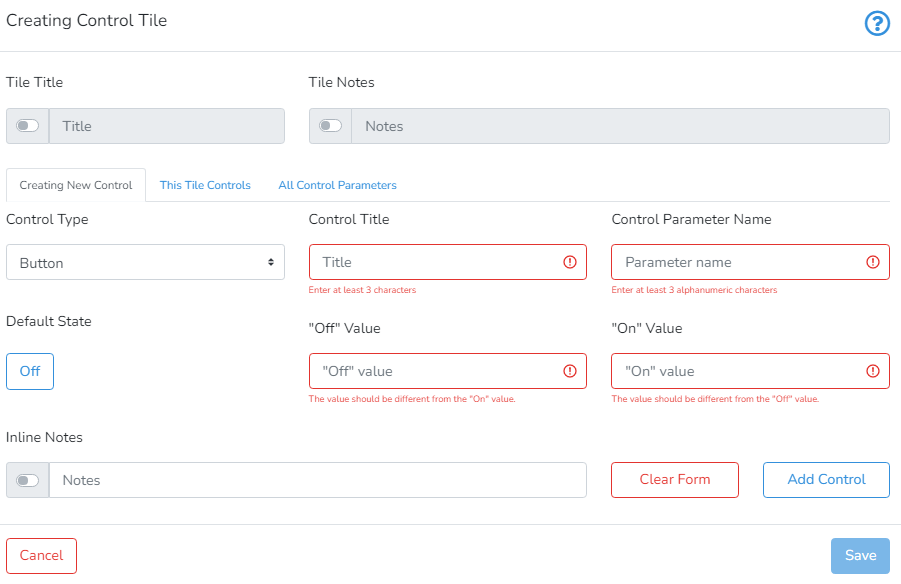
Button

The button is used to control switching between two binary values. The type of values can be numeric, string or boolean. A typical example of creating a new button is presented below.

To add a button, the user must provide the Control Title, Control Parameter Name, Default State, "Off" Value, "On" Value and Inline Notes.

Control Title defines how the control will be visually identified.

Control Parameter Name should be unique within the parent project. Only alphanumeric characters and underscore are allowed.

The "Off" Value field defines what value the control parameter should take when the button is off. 

The "On" Value field defines what value the control parameter should take when the button is on. 

Default State defines the state of the button. 

Inline Notes are optional and their visibility can be toggled with the switch.

After you are done, click Add Control to add the control to the control tile.
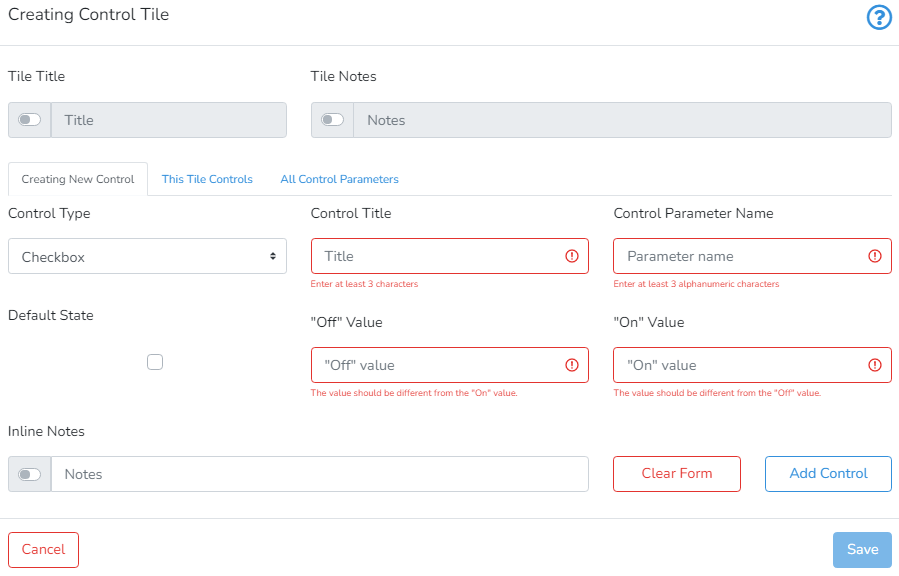
Checkbox

The checkbox is used to control switching between two binary values. The type of values can be numeric, string or boolean. A typical example of creating a new checkbox is presented below.

To add a checkbox, the user must provide the Control Title, Control Parameter Name, Default State, "Off" Value, "On" Value and Inline Notes.

Control Title defines how the control will be visually identified.

Control Parameter Name should be unique within the parent project. Only alphanumeric characters and underscore are allowed.

The "Off" Value field defines what value the control parameter should take when the checkbox is off. 

The "On" Value field defines what value the control parameter should take when the checkbox is on. 

Default State defines the state of the checkbox. 

Inline Notes are optional and their visibility can be toggled with the switch.

After you are done, click Add Control to add the control to the control tile.
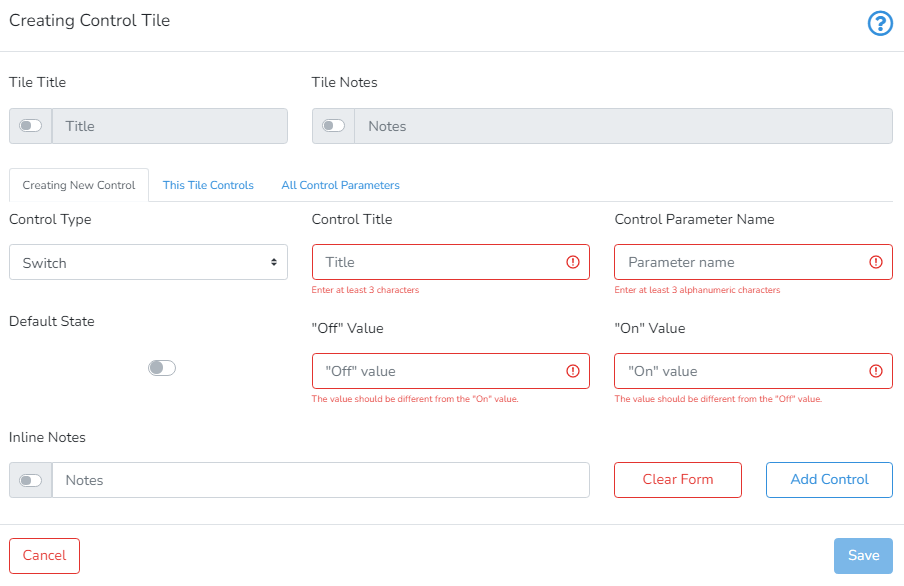
Switch

The switch is used to control switching between two binary values. The type of values can be numeric, string or boolean. A typical example of creating a new switch is presented below.

To add a switch, the user must provide the Control Title, Control Parameter Name, Default State, "Off" Value, "On" Value and Inline Notes.

Control Title defines how the control will be visually identified.

Control Parameter Name should be unique within the parent project. Only alphanumeric characters and underscore are allowed.

The "Off" Value field defines what value the control parameter should take when the switch is off. 

The "On" Value field defines what value the control parameter should take when the switch is on. 

Default State defines the state of the switch. 

Inline Notes are optional and their visibility can be toggled with the switch.

After you are done, click Add Control to add the control to the control tile.
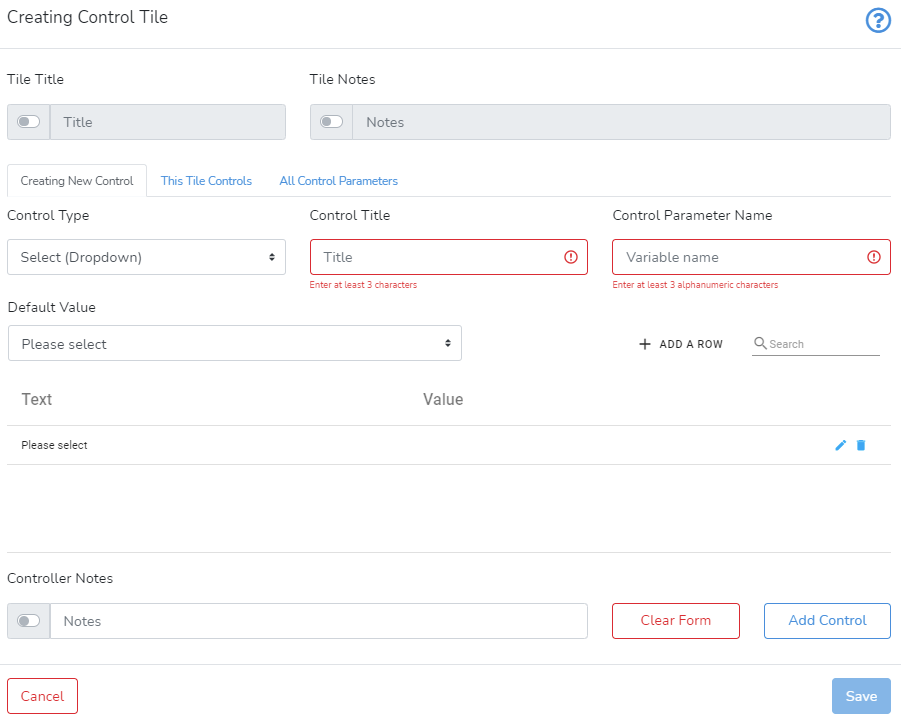
Select (Dropdown)

The Select (dropdown) is used to switch between several predefined values. The type of values can be numeric or string. A typical example of creating a new select (dropdown) is presented below.

To add a select (dropdown), the user must provide the Control Title, Control Parameter Name, Default Value, several tuples of Text-Value, and Inline Notes.

Control Title defines how the control will be visually identified.

Control Parameter Name should be unique within the parent project. Only alphanumeric characters and underscore are allowed.

To add a tuple Text-Value - click on Add Control. It will add a new row to the table below it. The user should fill in the Text column - this string will be used in the dropdown. The Value column will contain the associated value of the control parameter when the corresponding text is selected. Once editing of the row is completed - the user should click on the save icon to record changes. The user can rearrange rows by dragging them to the required position. Clicking on the delete button - will remove the corresponding row.

The Default Value defines the initial state of the select (dropdown).

It is recommended to select the default value after at least one text-value tuple is defined.

Inline Notes are optional and their visibility can be toggled with the switch.

After you are done, click Add Control to add the control to the control tile.
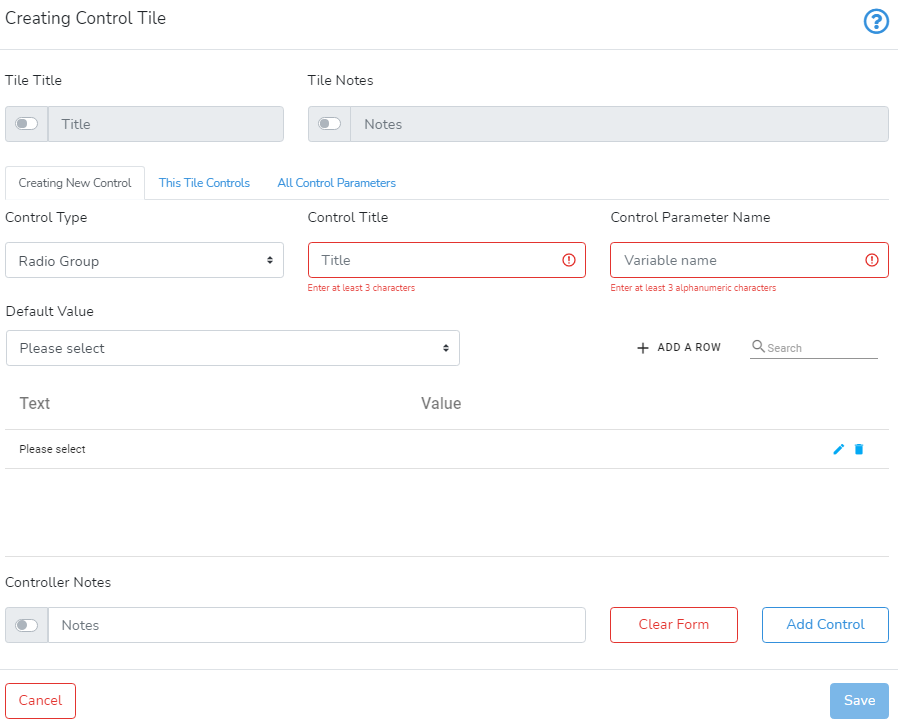
Radio Group

The radio group is used to switch between several predefined values. The type of values can be numeric or string. A typical example of creating a new radio group is presented below.

To add a radio group, the user must provide the Control Title, Control Parameter Name, Default Value, several tuples of Text-Value, and Inline Notes.

Control Title defines how the control will be visually identified.

Control Parameter Name should be unique within the parent project. Only alphanumeric characters and underscore are allowed.

To add a tuple Text-Value - click on Add Control. It will add a new row to the table below it. The user should fill in the Text column - this string will be used in the dropdown. The Value column will contain the associated value of the control parameter when the corresponding text is selected. Once editing of the row is completed - the user should click on the save icon to record changes. The user can rearrange rows by dragging them to the required position. Clicking on the delete button - will remove the corresponding row.

The Default Value defines the initial state of the radio group.

It is recommended to select the default value after at least one text-value tuple is defined.

Inline Notes are optional and their visibility can be toggled with the switch.

After you are done, click Add Control to add the control to the control tile.
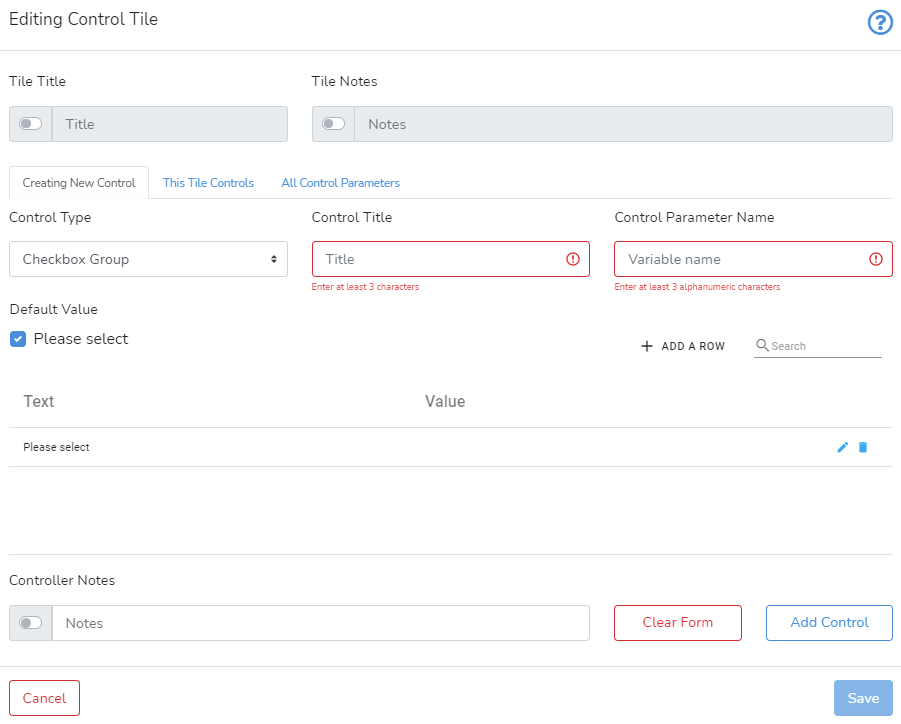
Checkbox Group

The checkbox group is used to select one or more values from several predefined values. The type of values can be numeric or string. Control parameter holds selected values in an array. A typical example of creating a new checkbox group is presented below.

To add a checkbox group, the user must provide the Control Title, Control Parameter Name, Default Value, several tuples of Text-Value, and Inline Notes.

Control Title defines how the control will be visually identified.

Control Parameter Name should be unique within the parent project. Only alphanumeric characters and underscore are allowed.

To add a tuple Text-Value - click on Add Control. It will add a new row to the table below it. The user should fill in the Text column - this string will be used in the dropdown. The Value column will contain the associated value of the control parameter when the corresponding text is selected. Once editing of the row is completed - the user should click on the save icon to record changes. The user can rearrange rows by dragging them to the required position. Clicking on the delete button - will remove the corresponding row.

The Default Value defines the initial state of the checkbox group.

It is recommended to select the default value after at least one text-value tuple is defined.

Inline Notes are optional and their visibility can be toggled with the switch.

After you are done, click Add Control to add the control to the control tile.
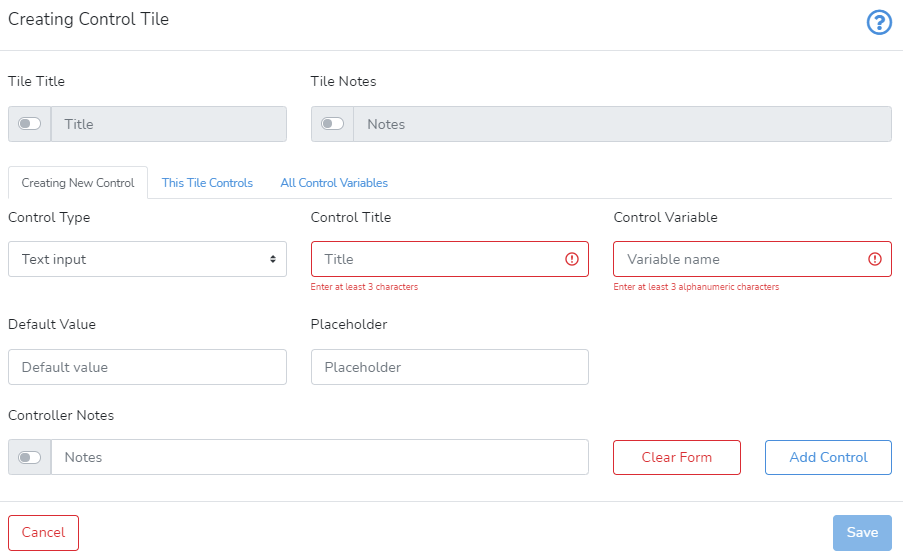
Text Input

The text input is used for free user input. The type of values can be numeric or string. A typical example of creating a new text input is presented below.

To add a text input, the user must provide the Control Title, Control Parameter Name, Default Value, Placeholder and Inline Notes.

Control Title defines how the control will be visually identified.

Control Parameter Name should be unique within the parent project. Only alphanumeric characters and underscore are allowed.

The Default Value field defines what value the control parameter should take by default. 

The Placeholder field defines what placeholder hint text should be displayed when text input is empty.

Inline Notes are optional and their visibility can be toggled with the switch.

After you are done, click Add Control to add the control to the control tile.
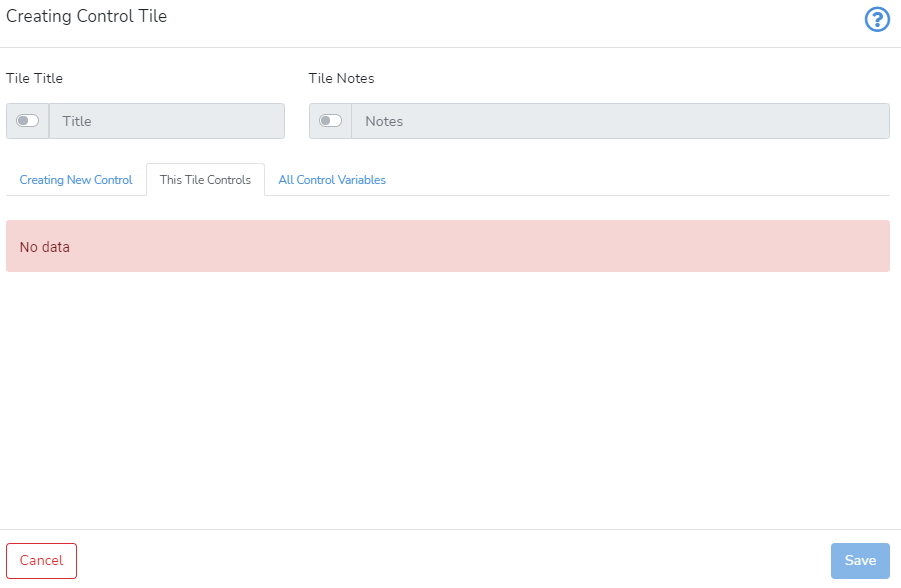
In the next step, click on This Tile Controls will bring up a list of all control variables linked to this control tile which the user can edit, delete and sort.

Clicking on All Control Variables shows the list of all control variables for this project.
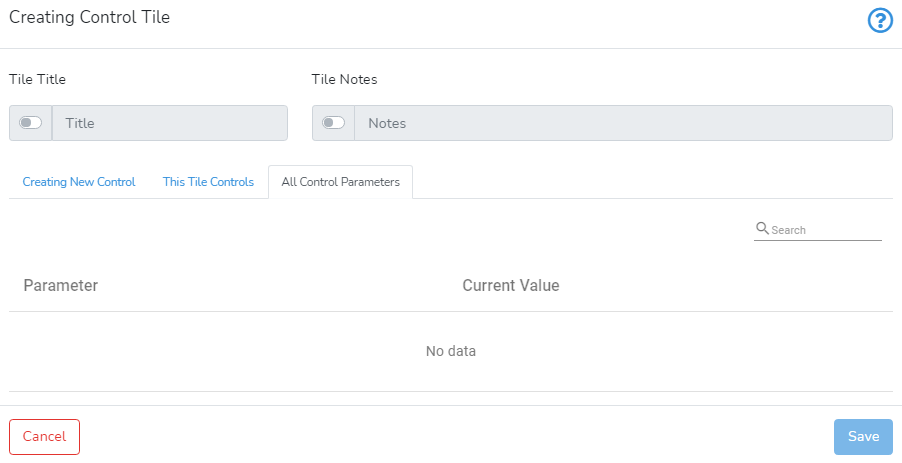
Once you are done, you can press Save in the bottom right-hand corner to save and create the control tile.
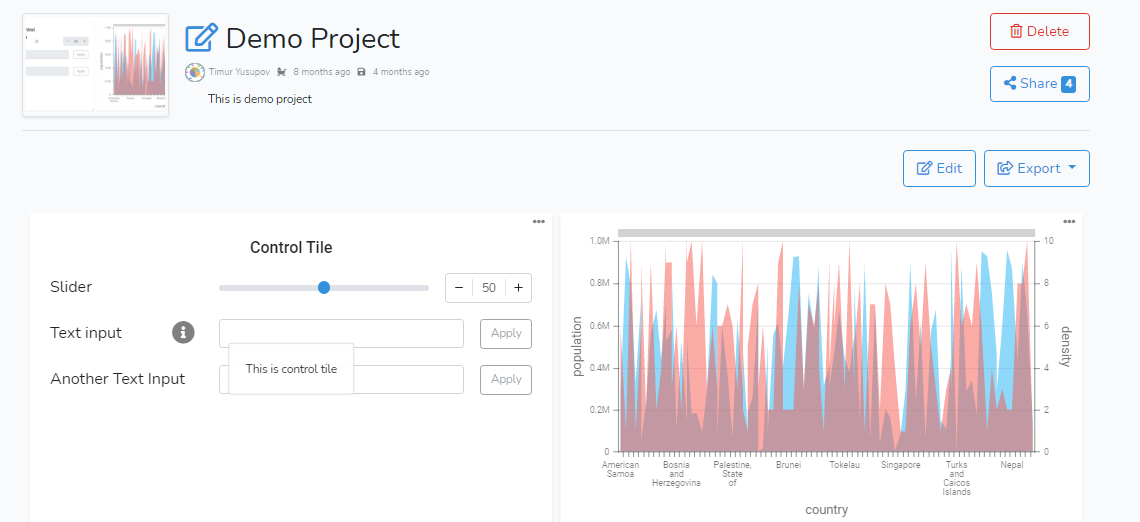
If you want to edit the control tile or change its control type, simply press the grey pencil icon in the top left-hand corner.

Next is How to Create Charts.