

How-to
Create Data Connection:
Direct Data Entry
Previously: How-to Create Data Connection.
This section helps with a direct-data-entry-specific creating data connection.
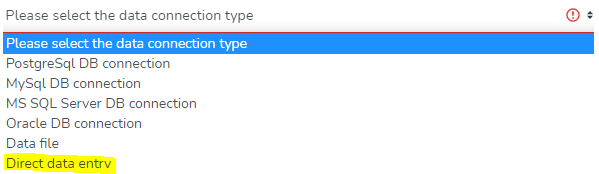
Select Direct data entry from the drop-down menu.
This step will present a spreadsheet table. The user can either enter the data manually or copy and paste the data from another source.
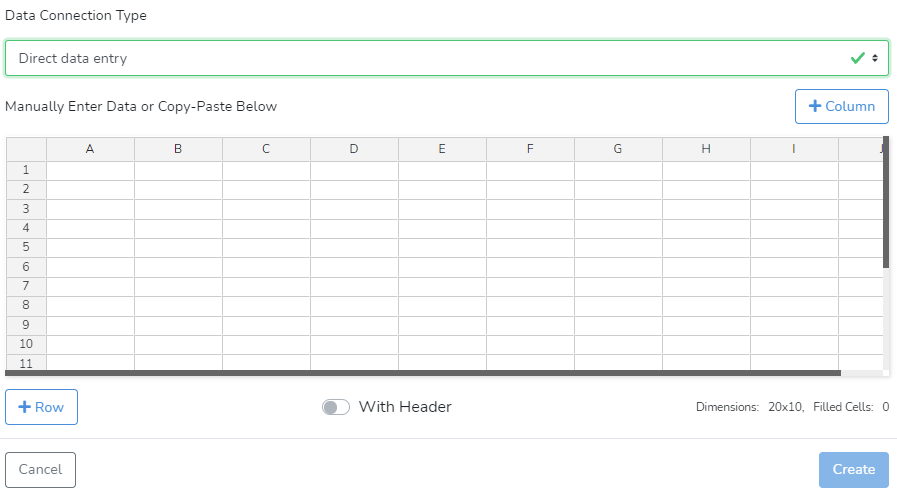
If required, the user can add additional columns or rows by clicking on +Column in the top right corner to add more columns, or on +Row in the bottom left corner to add rows. 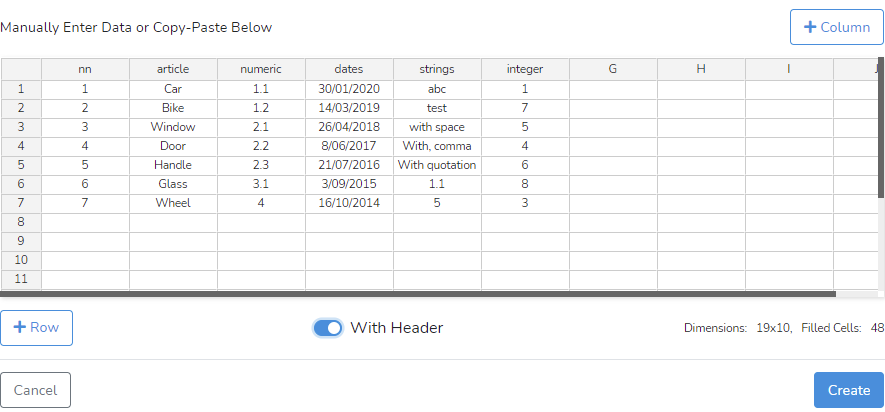 Enabling With Header makes the first row a header row.
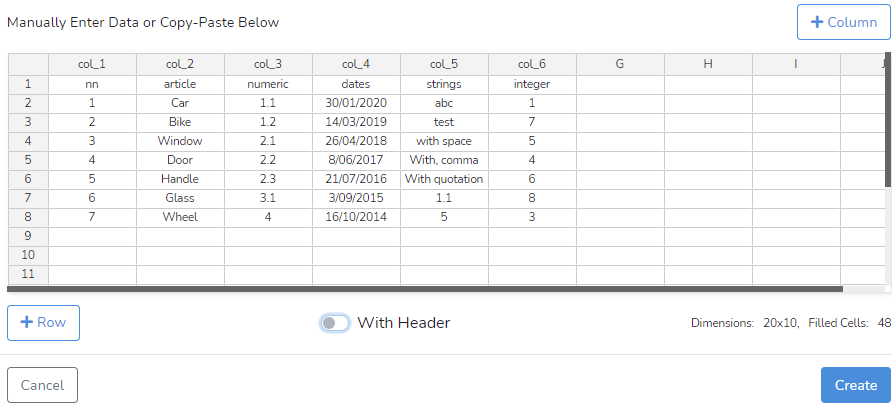
Disabling With Header will automatically create a header as seen in the picture above.
After the data are entered, click on Create to save the new connection.
Next is How-to Manage Data Connection.