

How-to
Create and Manage Projects:
Edit Projects
Previously: How-to Create and Manage Projects.
This section guides users how to edit projects.
There are two ways how to switch to project edit mode.
The first one is to click on the Edit button in the project list as shown below.

The second way is to click on the Edit button on the project page.
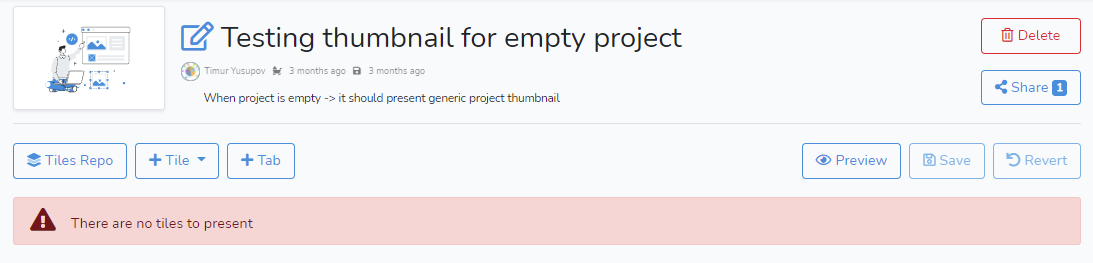
In the edit mode, the user can work on the project, for example, to add tiles or tabs.
The user can change the project title or description by clicking on the edit icon  next to the title of the project.
There are two buttons on the right side of the project header: The Save button saves all project updates and Revert cancels the changes and reverts to the latest saved version.
Next: How-to Share Project.