

How-to
Edit an Account
Previously: How to Create an Account.
This section helps with editing an account.
The users can edit their account by pressing the icon in the top right corner of the page containing either the first letter of the username or the profile picture.
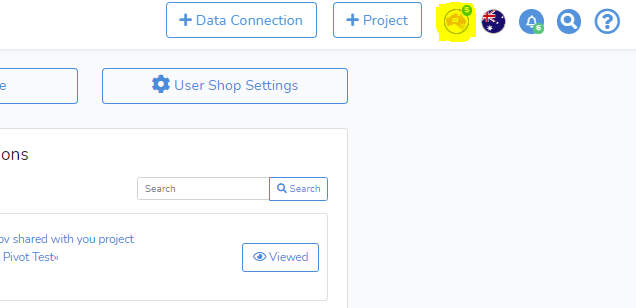 Upon pressing the icon, a drop-down window will show several options.
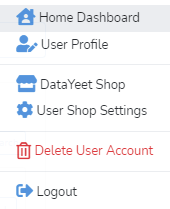 Selecting User Profile will bring up the window shown below.
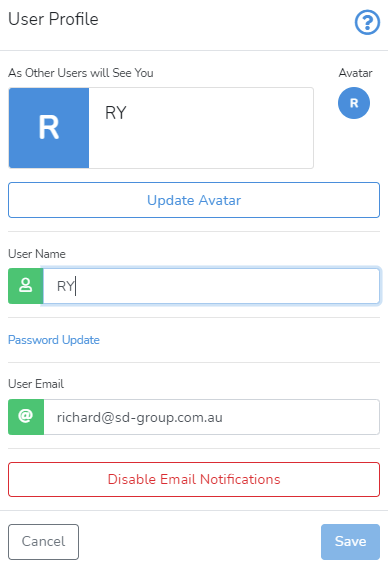 Here, the users can change their user name, user avatar, email, change their password and disable email notifications.
Clicking on Password Update will bring up the window shown below.
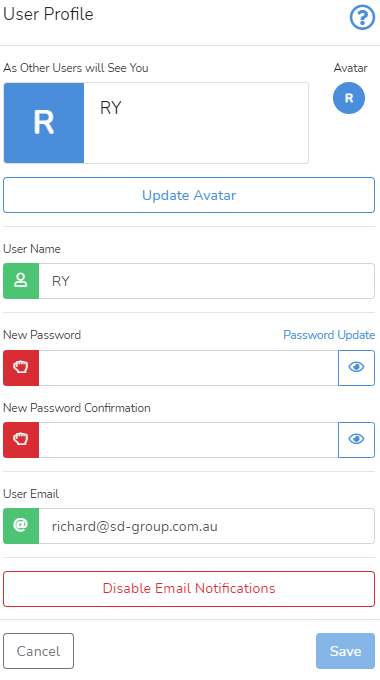 When changing the password, the user can preview it by clicking on the eye icon on the right. The icon on the left indicates the strength of the password. The user can read the password strength requirements by clicking on this icon.
Clicking on Update Avatar will bring up the window shown below.
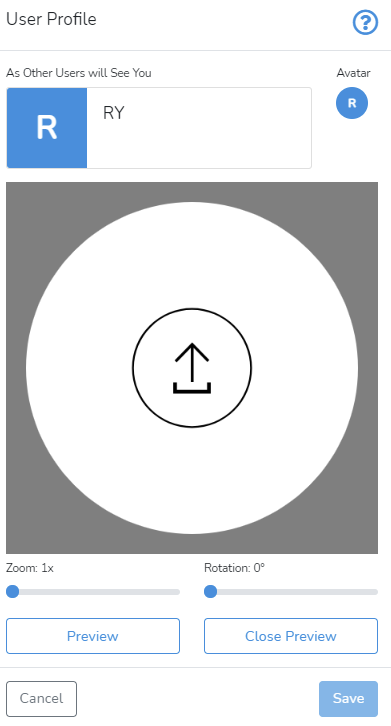 The user can drag the picture to the circle or click on the circle and select the picture file from the computer. The Zoom and Rotation functionalities enable to adjust how will the picture show in the avatar.
After completing the required updates, the user needs to click on the Save button in the bottom right corner of the window. Unsaved changes can be cancelled by clicking on Cancel.
Next is How to Delete an Account.