

How-to
Create and Manage Projects:
Share Projects
Previously: How-to Edit Projects.
This section guides users how to share projects.
The project admins can share it by clicking on the Share button.
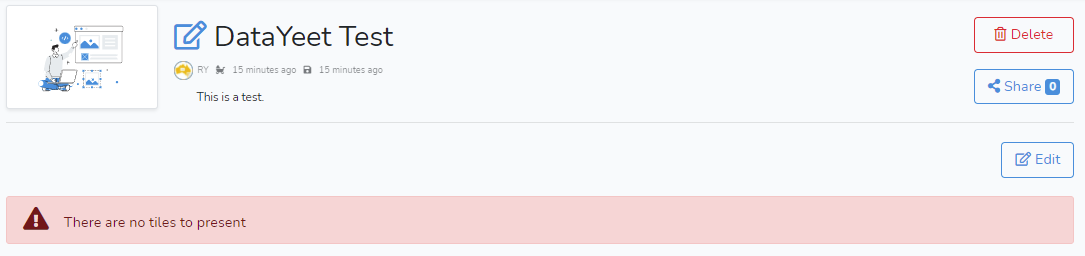 This step brings up the window shown below.
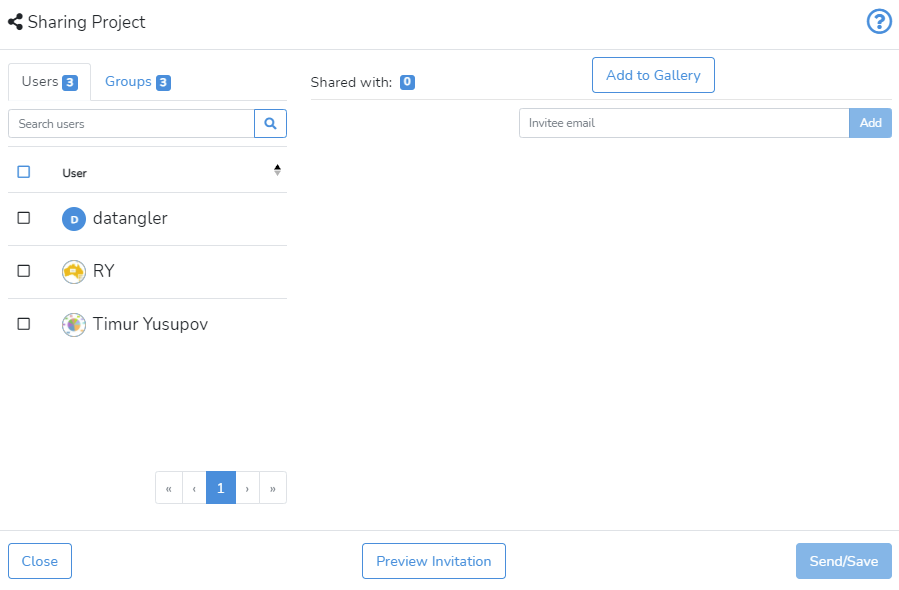 To share the project with one or several users or groups on DataYeet, click on Users or Groups tabs located in the top left corner. Select from the listed users or groups by checking the boxes. The user list includes only the users related to the admin. The group list includes only the group, where the admin is a member.
The project can be shared also via email to the users that are not yet members or are not related to the admin user. The project admin enters the email addresses into the text box on the right side to add them to the invitation.
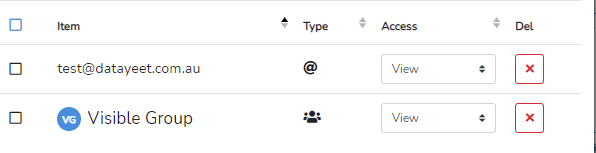
When the list of invitees is complete, the project admin can select their access rights - View or Admin. The Admin option will grant them the right to Edit or Share the project.
The example of the list may look like the picture below. The list contains the name of the user/user group, their type, and selected access rights. The last column allows removing an invitee from the list.
When the list of invitees is complete, clicking on Preview Invitation allows reviewing the list and the look of the invitation.
Click on Send and Save in the bottom right corner to send the invitation out.
To change the access or delete several users/groups at once, select them by checking the box on the left; or, if the selection includes everyone in the list, click on the box next to the Item label.
To change the access right of selected users, click on the drop-down box next to the Change Checked Items, select the new access role, and click on Change Checked Items. Similarly, to remove the selected users from the project, click on Remove Checked Items.

The admins can also add the project to the Gallery by clicking on Add to Gallery. This means that the project can be viewed by every user on DataYeet. Clicking on Add to Gallery will bring up the window shown below.
Only View access is allowed when sharing the project to the Gallery.
Adding the project to the Gallery will allow everyone on DataYeet to view it but it will also make the project free and separate it from the Three for Free deal.
Next: How-to Export Project.