

How-to
Create Data Connections
Previously: How-to.
This section helps with creating data connections.
To create a new connection click on the +Data Connection button in the top-left corner of the screen

The following window with a dialog will be opened:
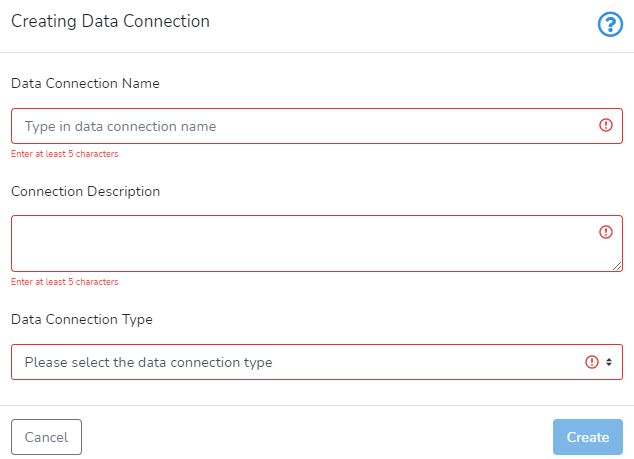
Clicking on the help icon in the right top corner will open a sidebar with the content of this page.
Clicking on the Cancel button will close the dialog without saving any data. Create button in the bottom right corner becomes active only after all required information is provided.
The required data connection attributes include:
Data Connection Name. It should be relatively short, informative, and unique. It should be at least 5 characters long. This name will be listed in the drop-down with data connections when creating or editing projects.
Data Connection Description allows providing extra information about the user dataset.
Data Connection Types field contains a drop-down with several supported connection types:
For data-type specific instructions - click on the corresponding item above.
The new data connection is saved by clicking on Create.
When the data connection is created, the user is redirected to the data connection section containing a list of all available data connections.
Next is How-to Manage Data Connection.