

How-to
Manage Users and Groups:
Edit User Groups
Previously: How to Create User Groups.
This section helps with editing user groups.
The group admin can edit the group details and membership.
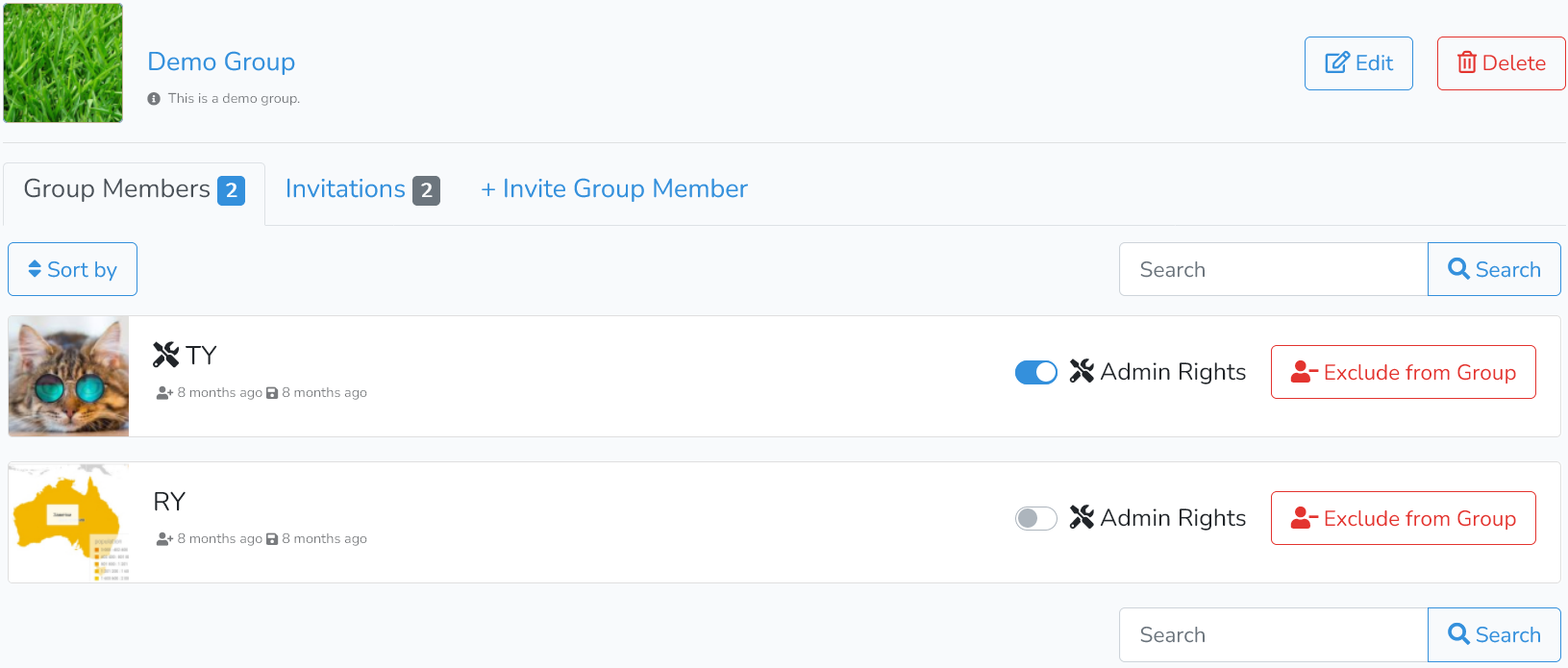
Clicking on Edit at the right side of the group header will bring up the edit window shown below.
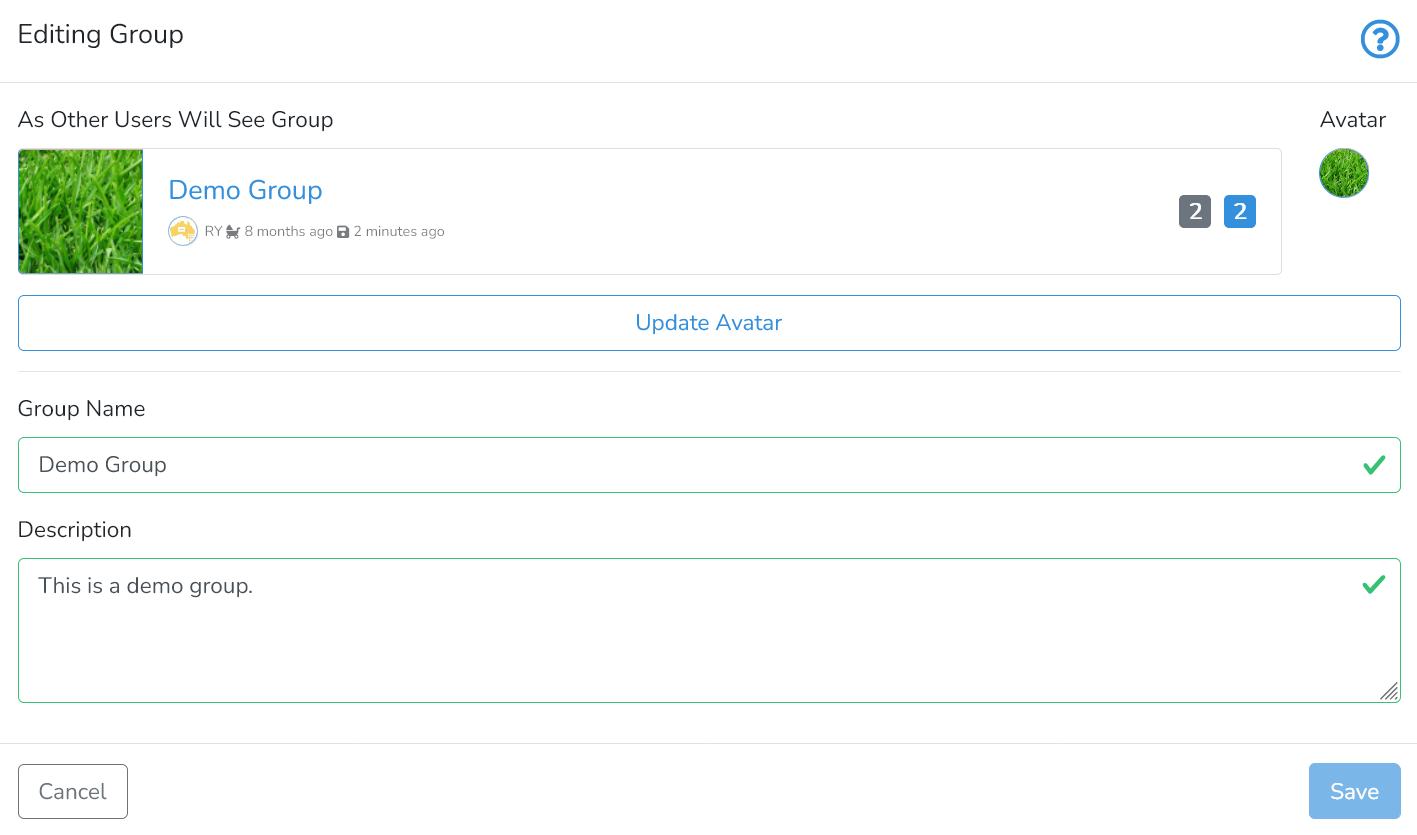
In the edit window, the group admin can update the name and description of the group.
The admin can also add and edit the avatar (or the profile picture) by clicking on Update Avatar.
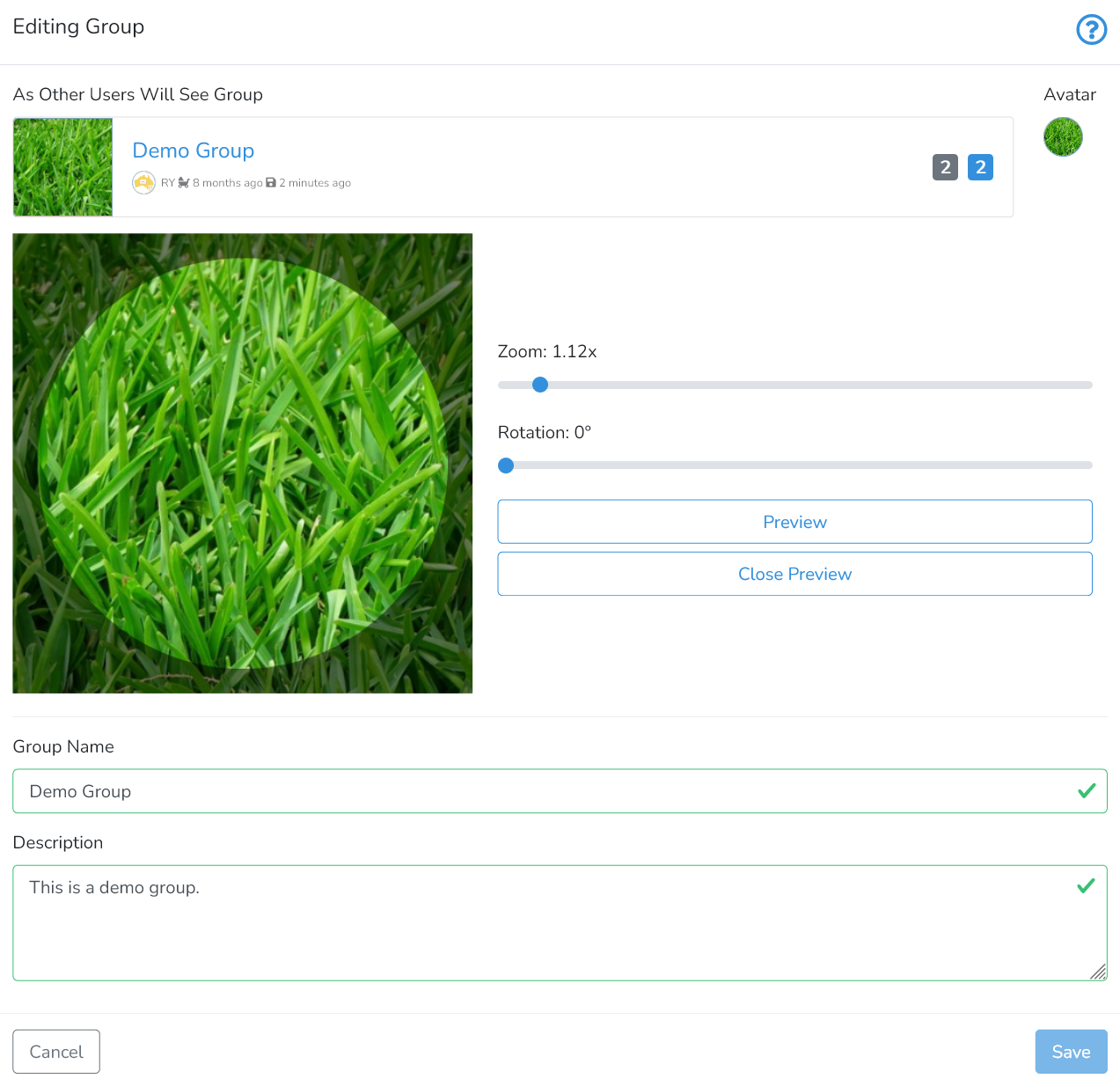
Clicking in the centre of the circle will enable selecting an image from the user's computer. The look of the image can be modified by adjusting its zoom and rotation.
To preview the picture users should click on Preview. To close the preview - click on ClosePreview.
Clicking on Save will save and publish changes.
Next is How to Invite Members to User Groups.