

How-to
Create Data Connection:
Data File
Previously: How-to Create Data Connection.
This section helps with a data-file-specific creating data connection.
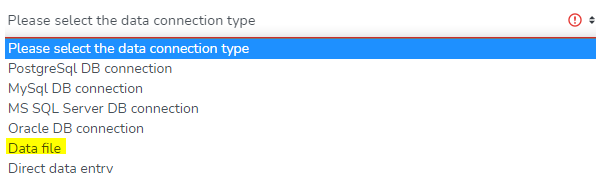
DataYeet can ingest basically any format of data files. To create a new data connection to the data file - click on Data file.
Selection of the Data file option will present required data file inputs. Here, the user can either drag and drop the data file on the input field under the title Select file or by selecting the file by clicking on Browse.
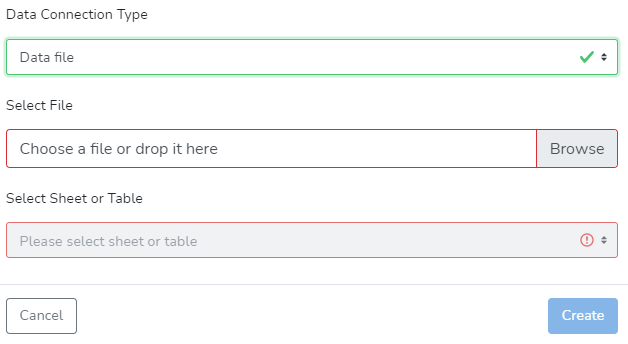
Next, select the sheet or table in the data file. When all inputs are provided, the preview table will become available.
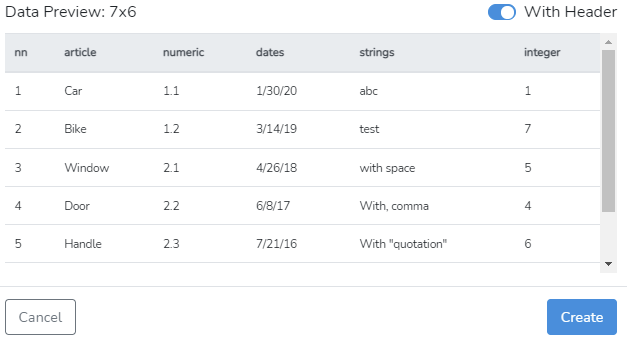 At the top right corner of the table, there is a switch With Header. Enabling With Header will turn the first row into a header row.
 Alternatively, when With Header is disabled, the header is created automatically as seen in the picture above.
Once the Data File connection is saved - the user can only change the connection name and connection description.
Complete data selection by clicking on Create in the bottom right-hand corner to save the data connection.
Next is How-to Manage Data Connection.