

How-to
Manage Data Connections:
View Data Connection
Previously: How-to Manage Data Connection.
This section helps with viewing data connections.
To switch to View Data Connection - first, navigate to the Data Connections section, then, Click on in View.
An example of a data connection view is presented below.
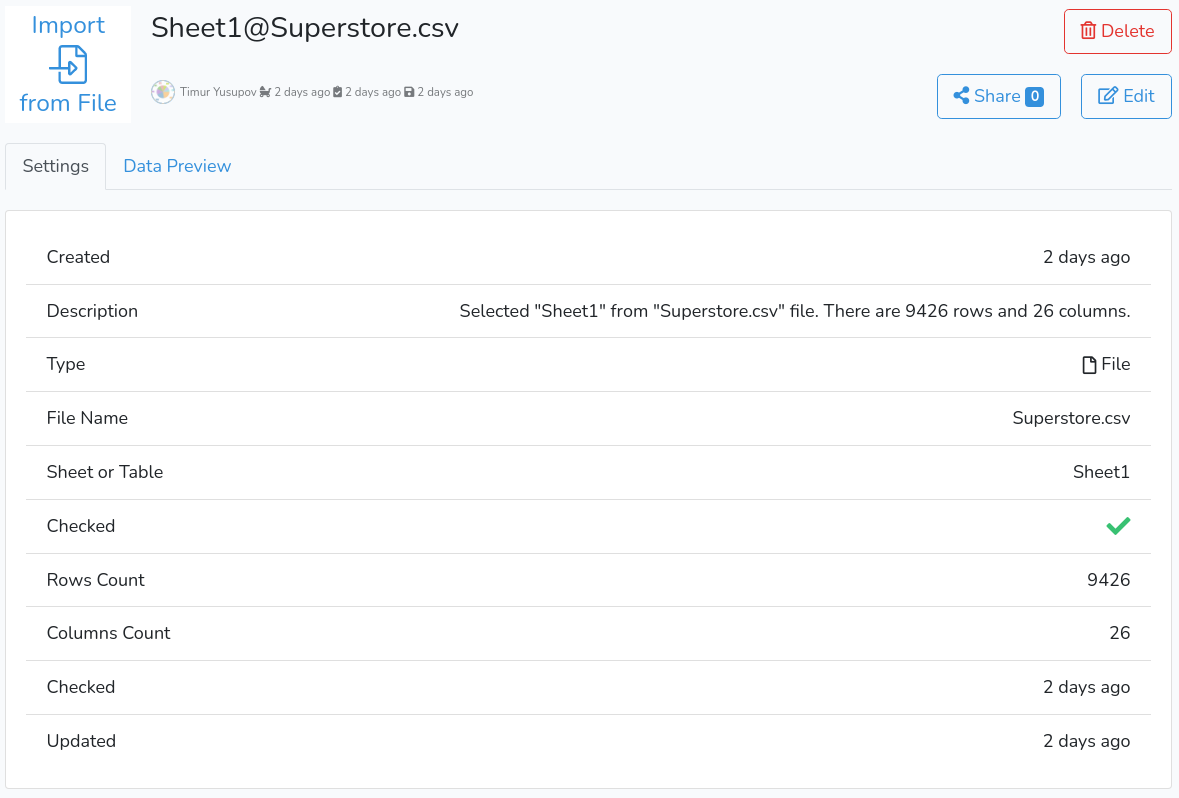
The header of the page is similar to the corresponding row in the list of data connections.
Settings
Below the header, there is a summary of data connection settings.
For DB data connections there is an additional row with a password. Clicking on the eye icon will show the password if the user is authorized.
Data Preview
For Direct Data Entry and Data File connections - there is an additional tab withData Preview.
In this tab, the user can review and export the data. An example of Data Preview is presented below:
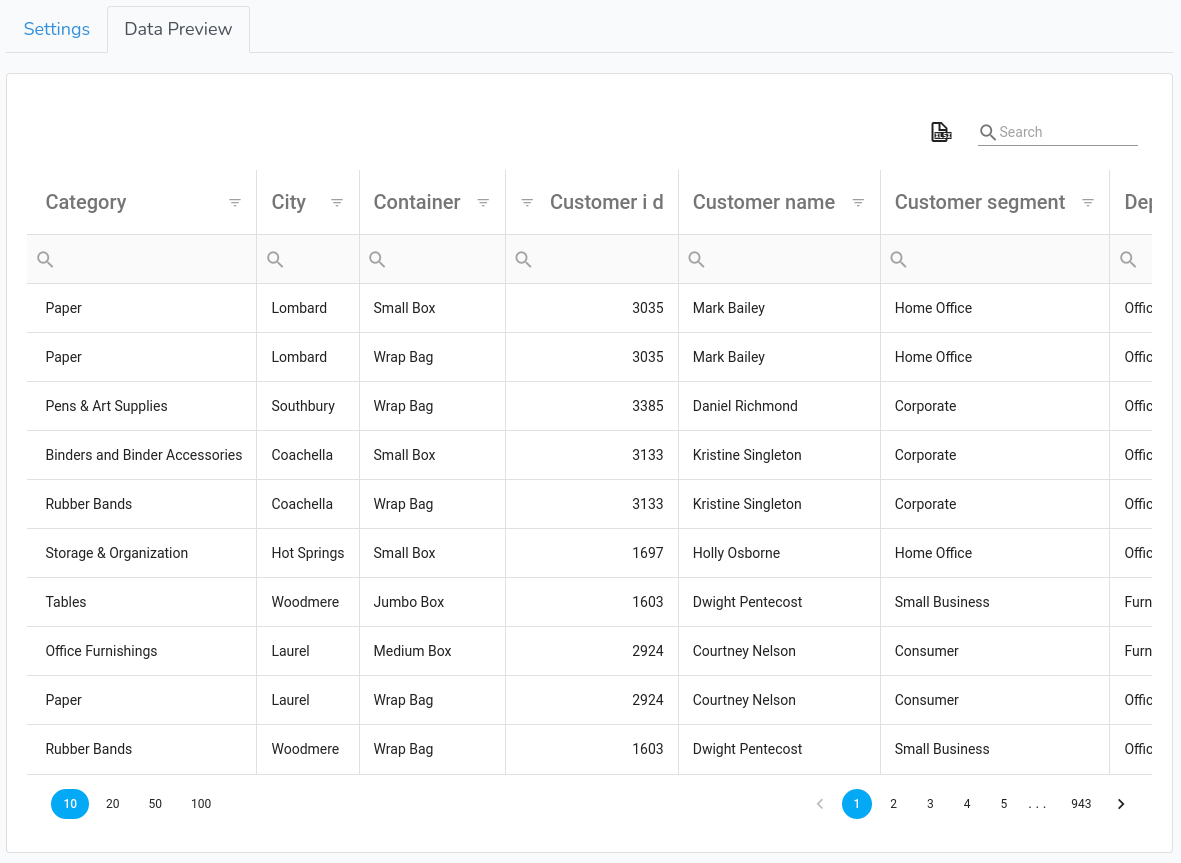
To export data - the user should click on  export icon. Data will be exported to XLSX format.
The user can use the Search field to review the data. It will search across all columns. Alternatively, search and filtering is available for each column.
When there are more than 10 rows in the data - preview will be paginated. Default pagination is 10 rows per page. Users can change pagination to 20, 50 and 100 - by clicking on the corresponding buttons on the bottom left.
Next: How-to Edit Connection.