

How-to
Manage Users and Groups:
Invite Members to User Groups
Previously: How to Edit User Groups.
This section helps with inviting members to user groups.
Clicking on +Invite Group Member opens up the window shown below.
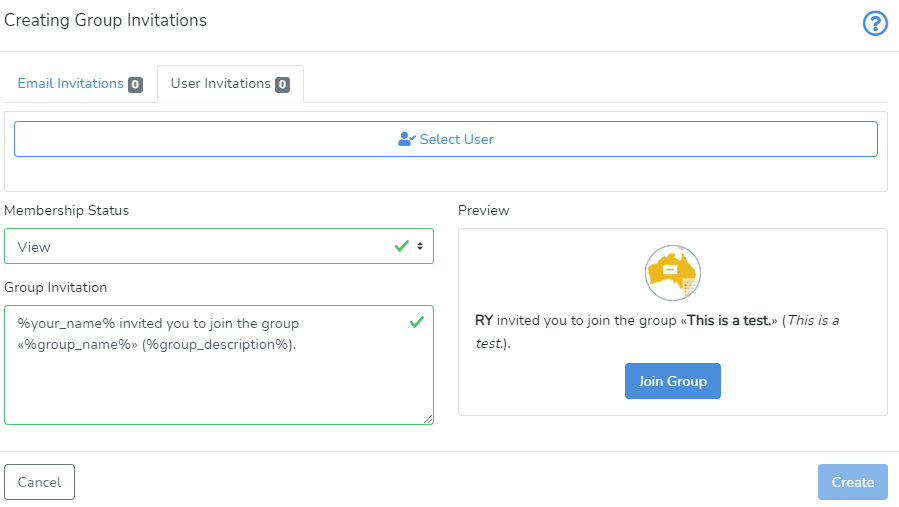 There are two types of invitations: Email Invitations and User Invitations.
User Invitations are sent by the group admin to the people they are related to on DataYeet. The group admin does so by clicking on Select User.
Email Invitations are sent to the people via their email addresses. Email addresses can be gradually added to the input window as shown in the screenshot below. If several email addresses need to be added at the same time, they should be comma-separated.
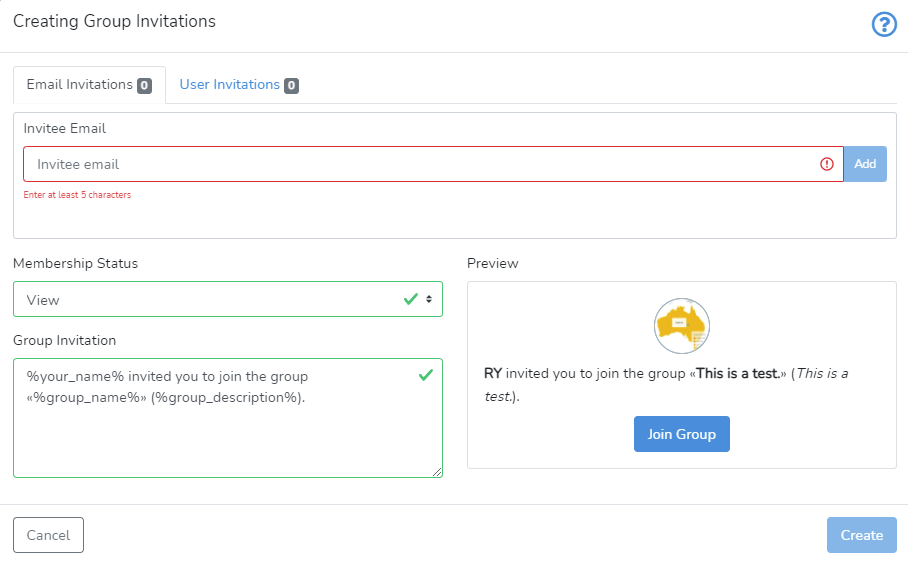 The group admin should set the membership status as View or Admin. View means that the invitee can only view the group and its members. Admin means the invitee can edit and invite others to the group.
Under Group Invitation the group admin can choose what the group invitation says and, on the right side of the window, they can preview the look of the invitation.
The invitee becomes a member of the group only upon accepting the received invitation. Only after the new user joins the group, they become related on DataYeet to all group members (and vice versa).
Next is How to Manage Group Members.