

How-to
Premium Account Time
Previously: 3 for Free.
This section guides users how to purchase premium account time.
When the 3-for-free is not sufficient - DataYeet offers Premium Account Time (PAT). With PAT - users are no longer limited to 3 objects. PAT allows users to have as many Data Connections, Projects, Pages and Tiles in pages as required, subject to the Fair Use Policy.
Checking PAT
To check the status of PAT, users can look at the green badge on the user avatar that can be found on the right side of the navigation bar, as shown below.
 In the picture above the user has more than 99 PAT days.
More information about user PAT is available from the user Home Dashboard. To navigate to Home Dashboard - click on user avatar and select Home Dashboard in the dropdown menu.
 In the example above the user has 1912 PAT days.
Alternatively, the status of PAT can be checked through the DataYeet shop.
Accessing DataYeet Shop
There are 3 ways to access the DataYeet shop: Direct access to the DataYeet shop, access through a user profile, or when the 3-for-free limit is hit.
For direct access to the DataYeet shop navigate to https://datayeet.io/shop.
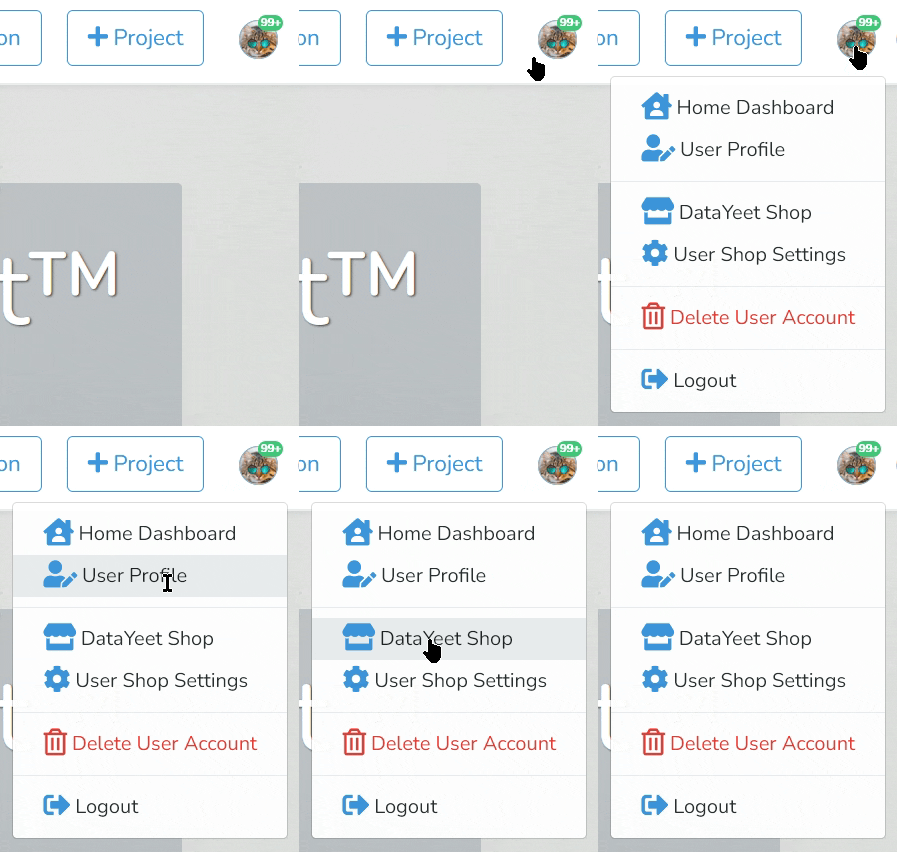
To access the DataYeet shop through a user profile - click on the user avatar and select the DataYeet shop link, as shown below.
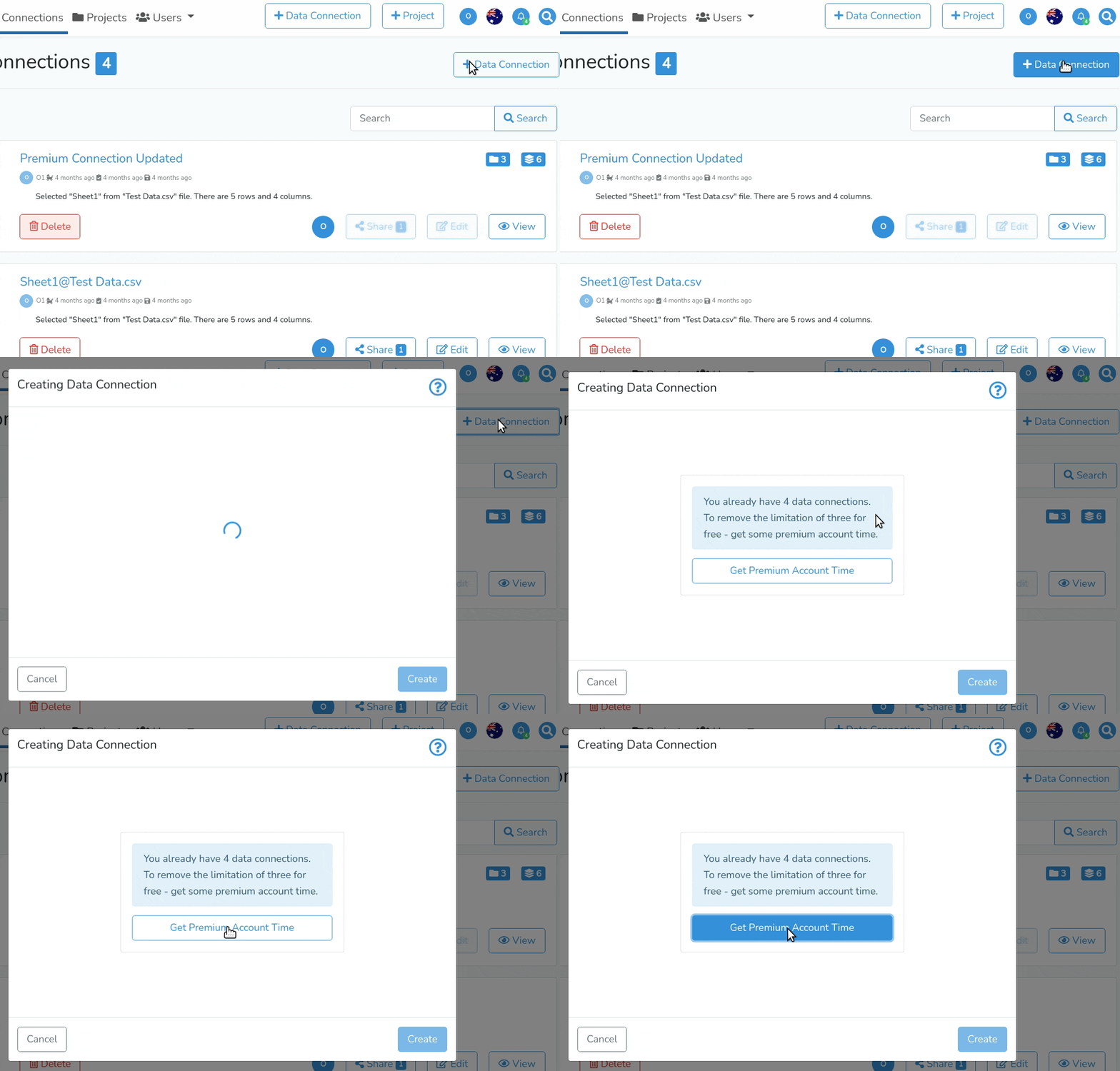
Alternatively, the user can click on Get Premium Account Time when notified by the platform that the 3-for-free limit is hit, as shown below.
DataYeet Shop
At the DataYeet shop, users can get more information about different pricing options for PAT.
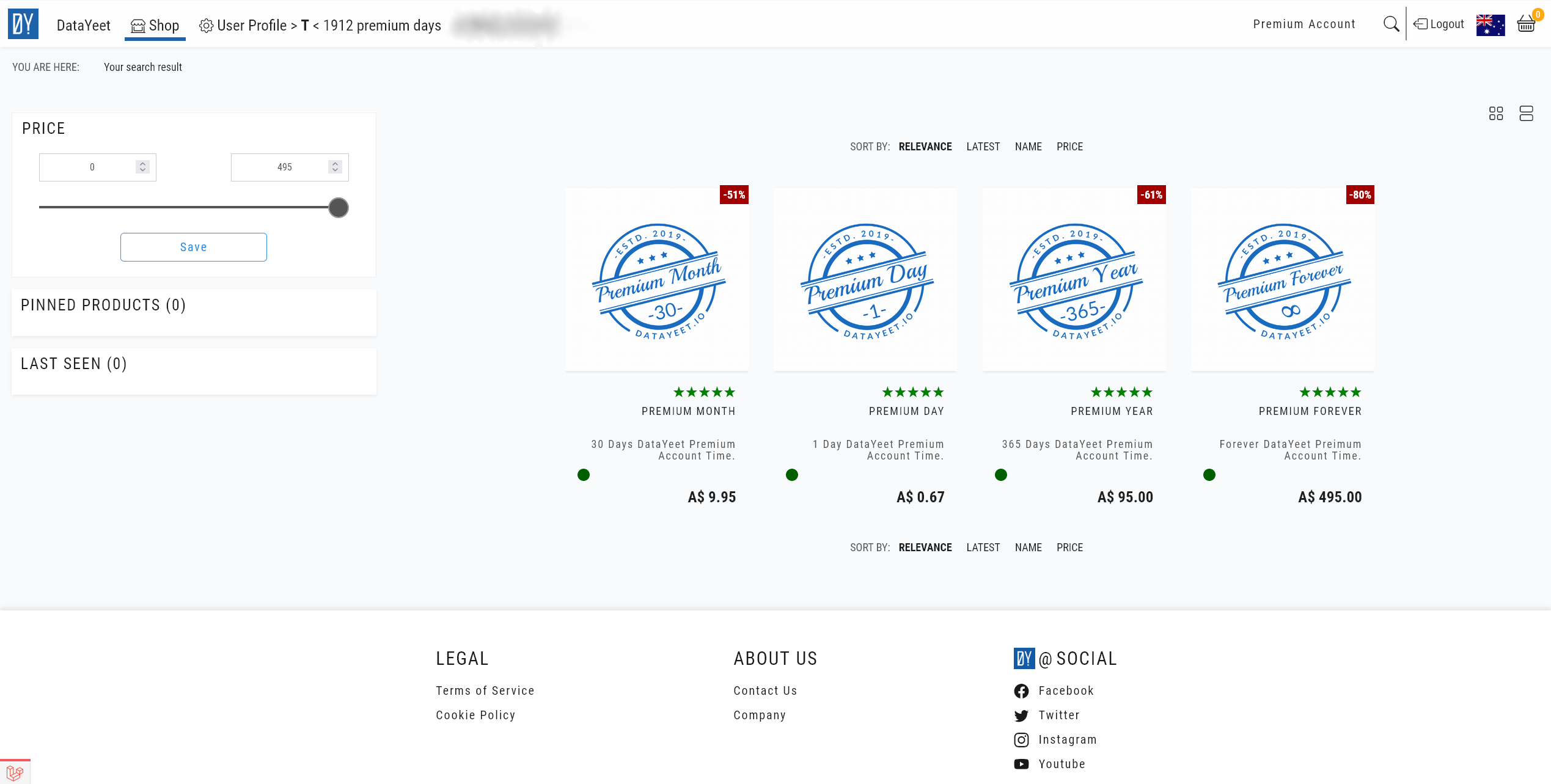
The navigation bar includes the count of PAT days.
In the example above the user has 1912 PAT days.
User Profile @ DataYeet Shop
Clicking on  at the navigation bar, users can specify their billing address for invoicing and check past purchases.
Units of PAT and Discounts
The minimum increment of PAT and the base for discount calculation is one day. DataYeet allows purchasing as little as one day of PAT. However, users are rewarded for longer PAT with a higher discount.
For convenience, DataYeet offers PAT in days, months and years. The discount for multiple time units is automatically computed and applied. To check the schedule of discount - click on, say Premium Day, similar to the image below will be shown.
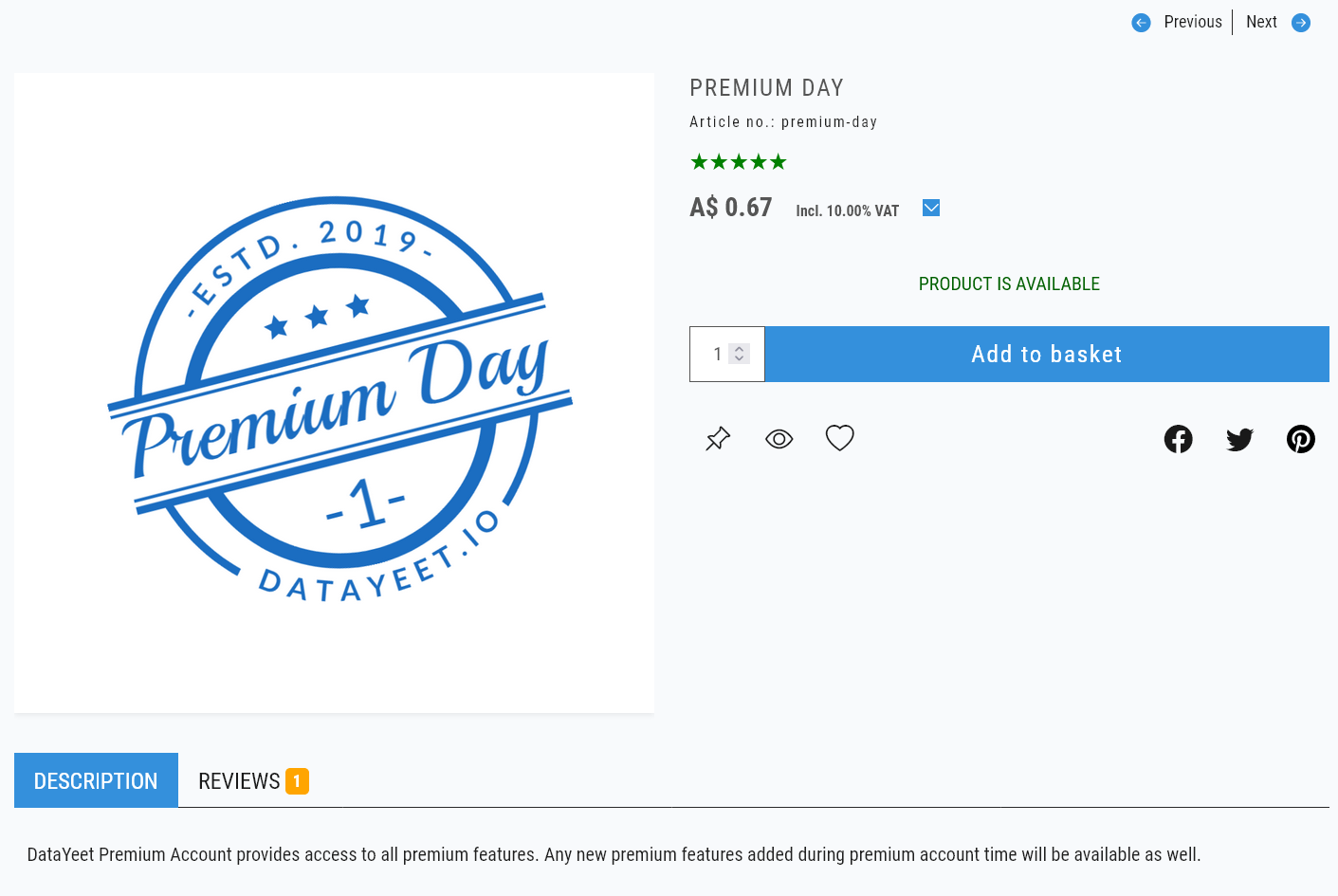
Next, click on  next to price and VAT to reveal the schedule of discounts as shown below.
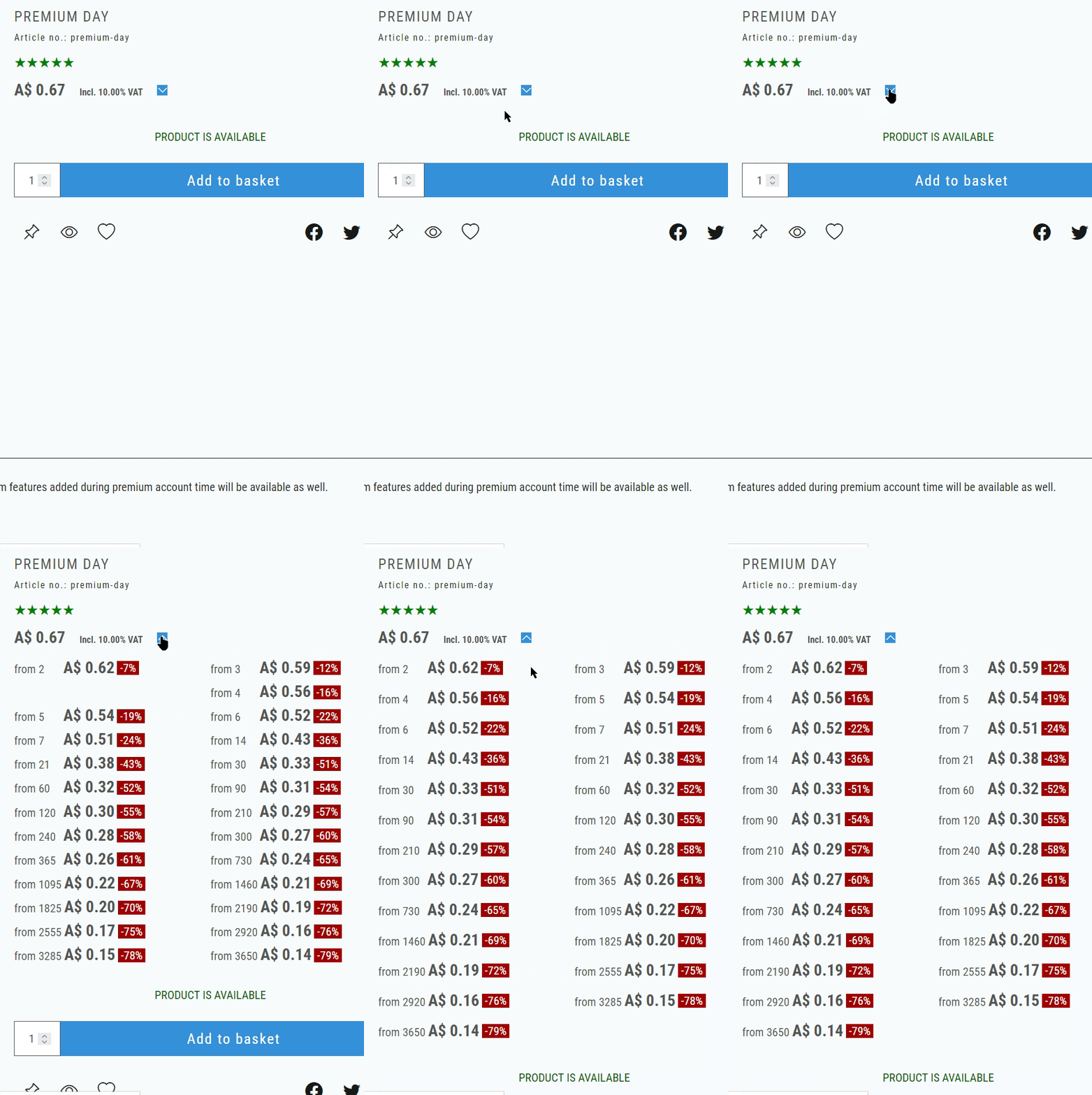 The maximum discount is 80% available for Premium Forever that is currently valued at A$495 one-off payment. (The calculation of 80% discount assumes at least 10y of usage)
Premium Forever is a product with limited availability. It is only offered during the early adoption period.
Coupon for One Month of PAT
Every registered user of DataYeet can get one month of PAT free of charge.
Use coupon NEW PREMIUM MONTH.
This coupon can be used any time but only once.
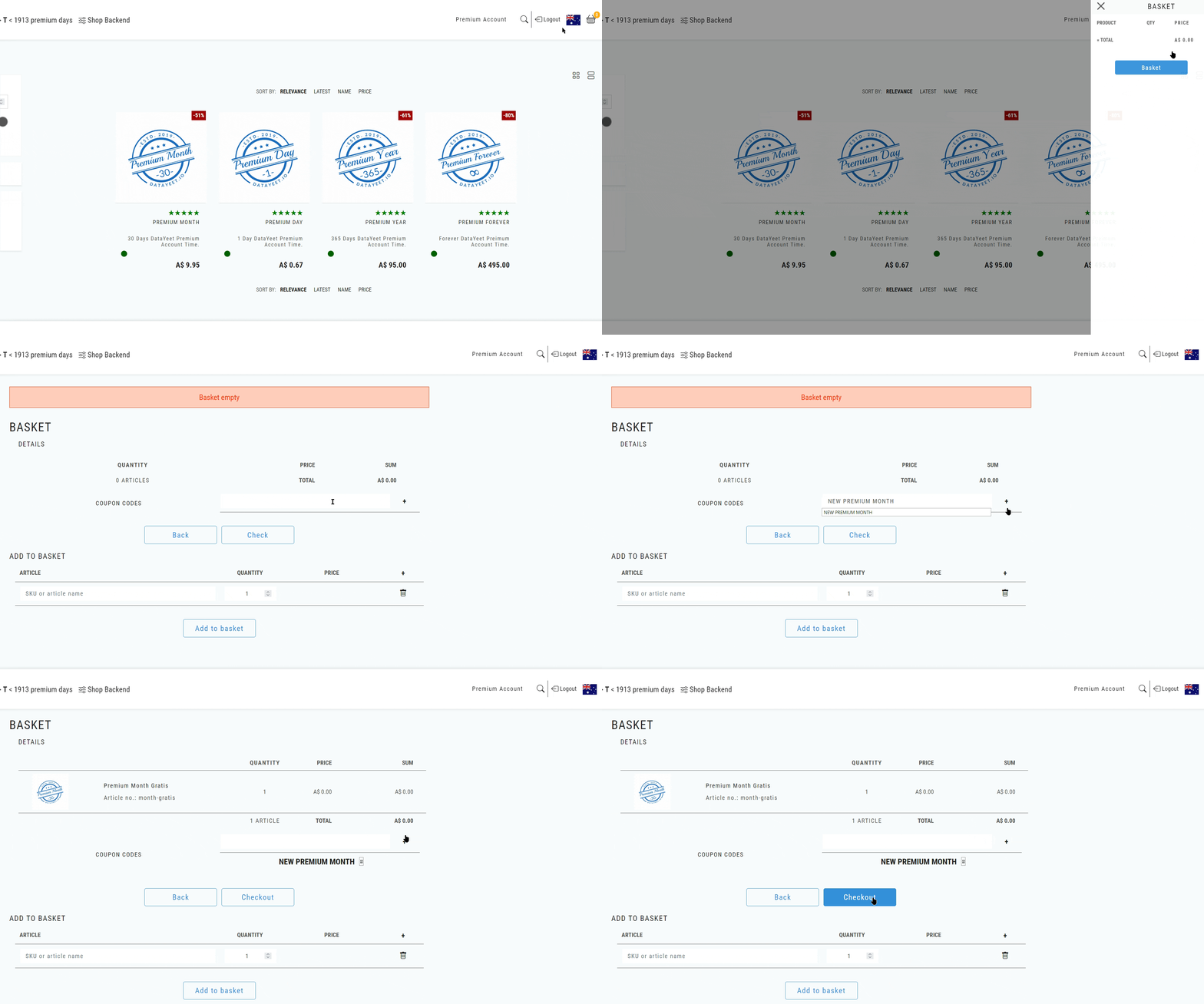
To use a coupon - click on the basket icon at the very right side of the navigation bar. Click on the Basket button to show its content. Type in Coupon Codes input field NEW PREMIUM MONTH and click on the plus sign (+). Click on Checkout to complete the transaction, as shown below.
Purchasing PAT
To purchase any amount of PAT - click on the desired unit of PAT from the offered options. Next, set the required number of units and click on Add to basket. An example is shown below.
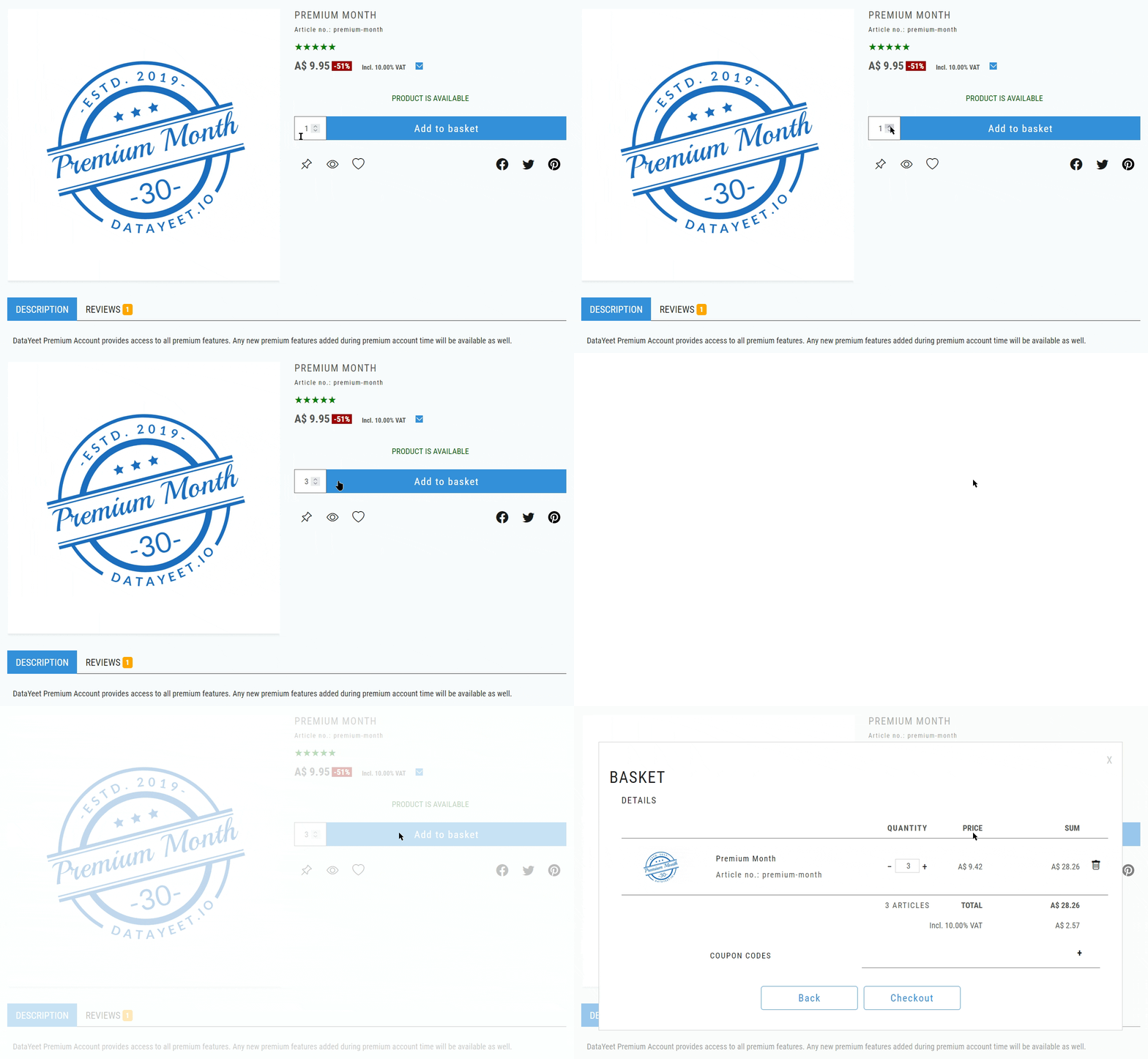
While one month of PAT awards a 51% discount, selecting 3 months automatically applies a 53% discount, as shown in the example above.
Click on Checkout to go to the next step of completing the transaction.
Alternatively, click on Back or close a dialog window to continue shopping. To return to the checkout basket - click on the basket  icon and click on the Basket, button as shown below.
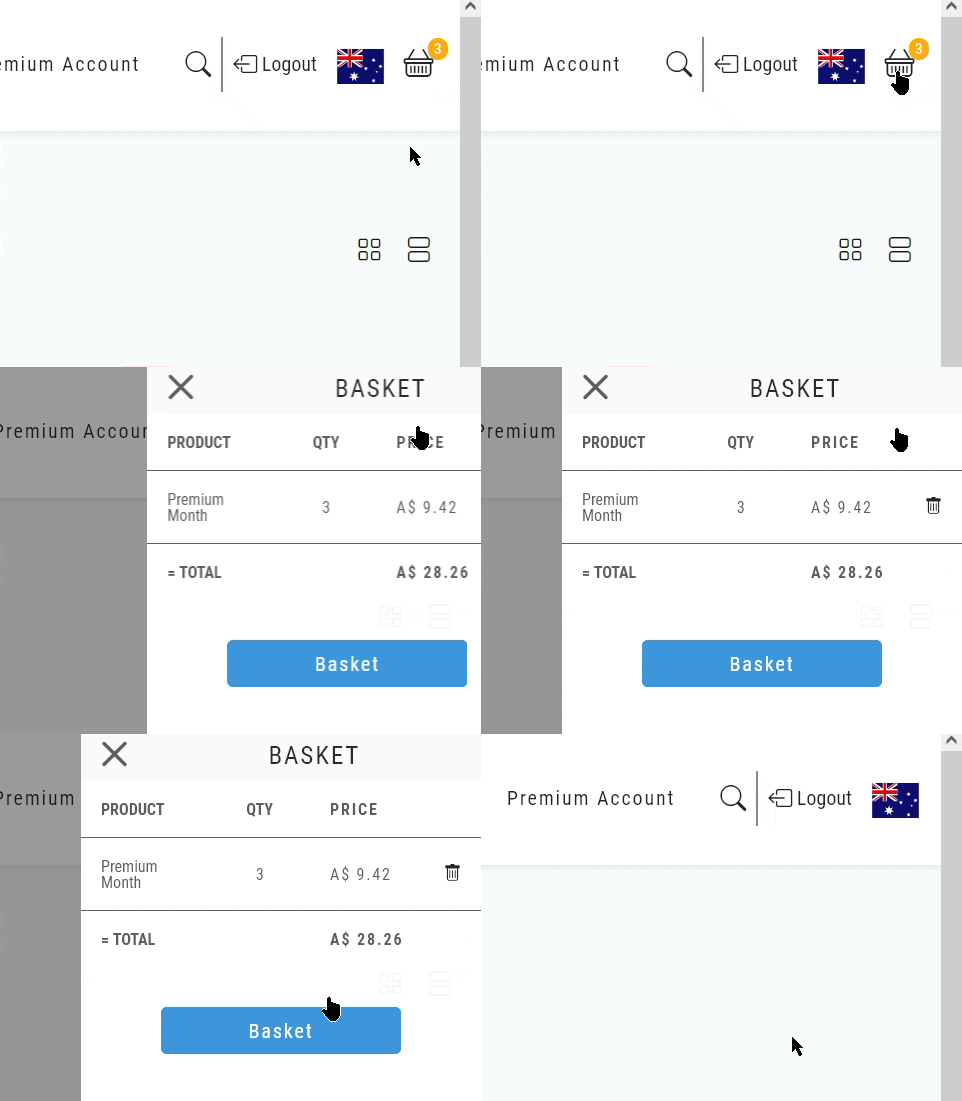
It will open the basket page as shown below.
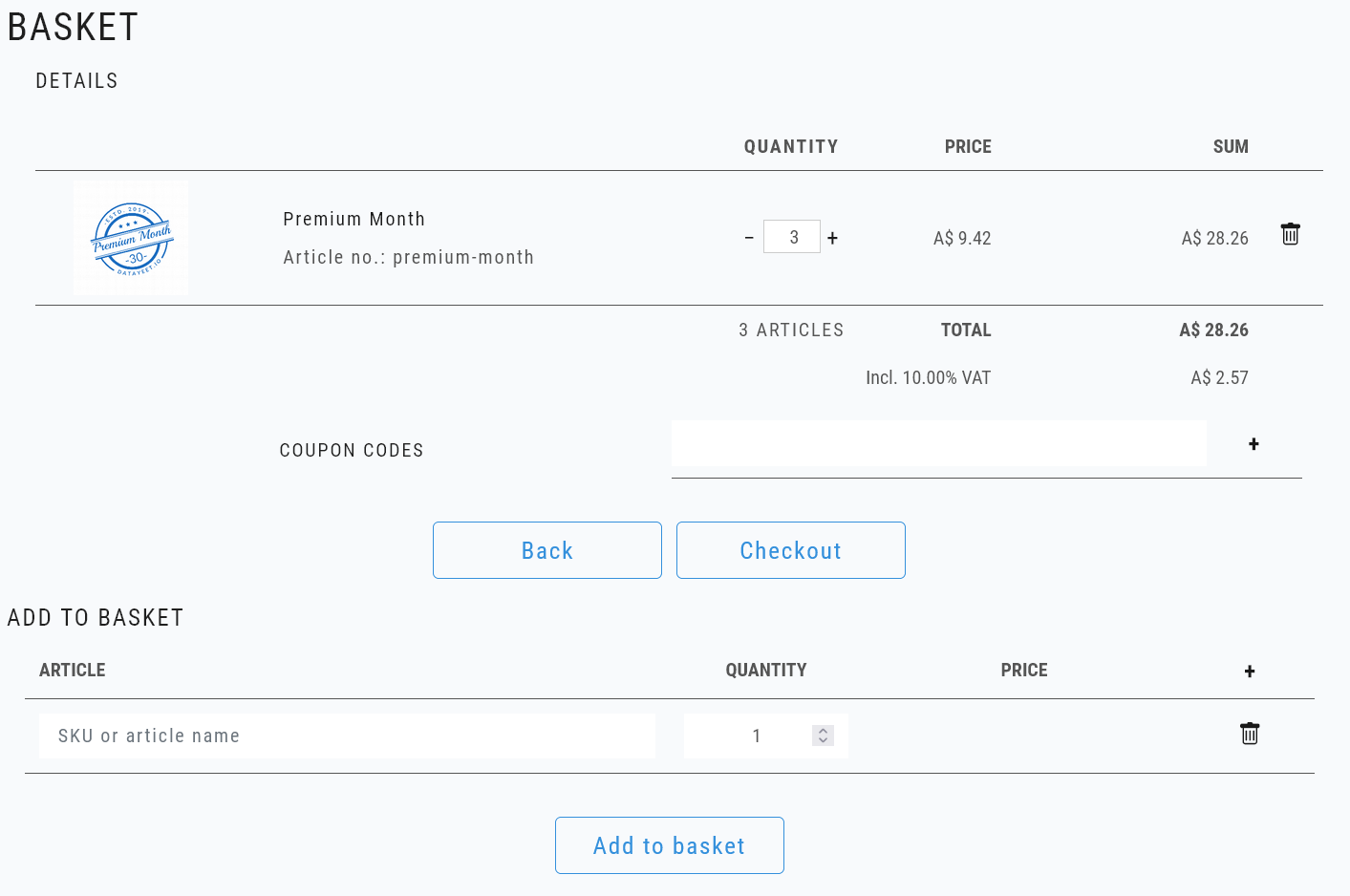 Here, the users can change the quantity, remove items, add items or apply coupon codes. When ready - click on Checkout. To return to the shop - click on Back.
Clicking on Checkout will open a window, as shown below.
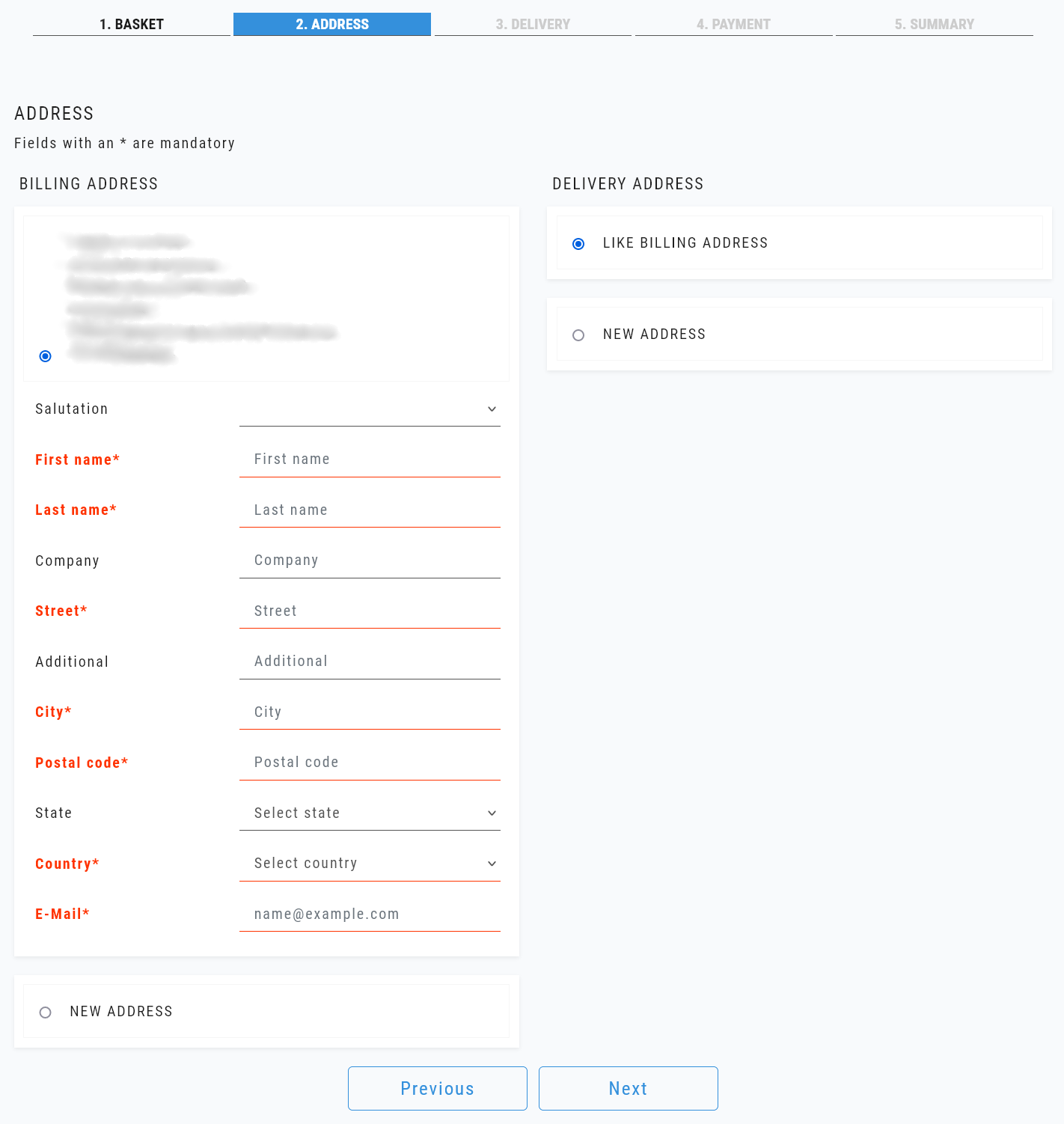 Fields with an asterisk (*) are mandatory. Here, the user should provide a billing address or select the previously provided one, if available. When ready - click Next. To return to the previous step - click on Previous.
Clicking on Next will bring the user to the next step specifying Delivery.
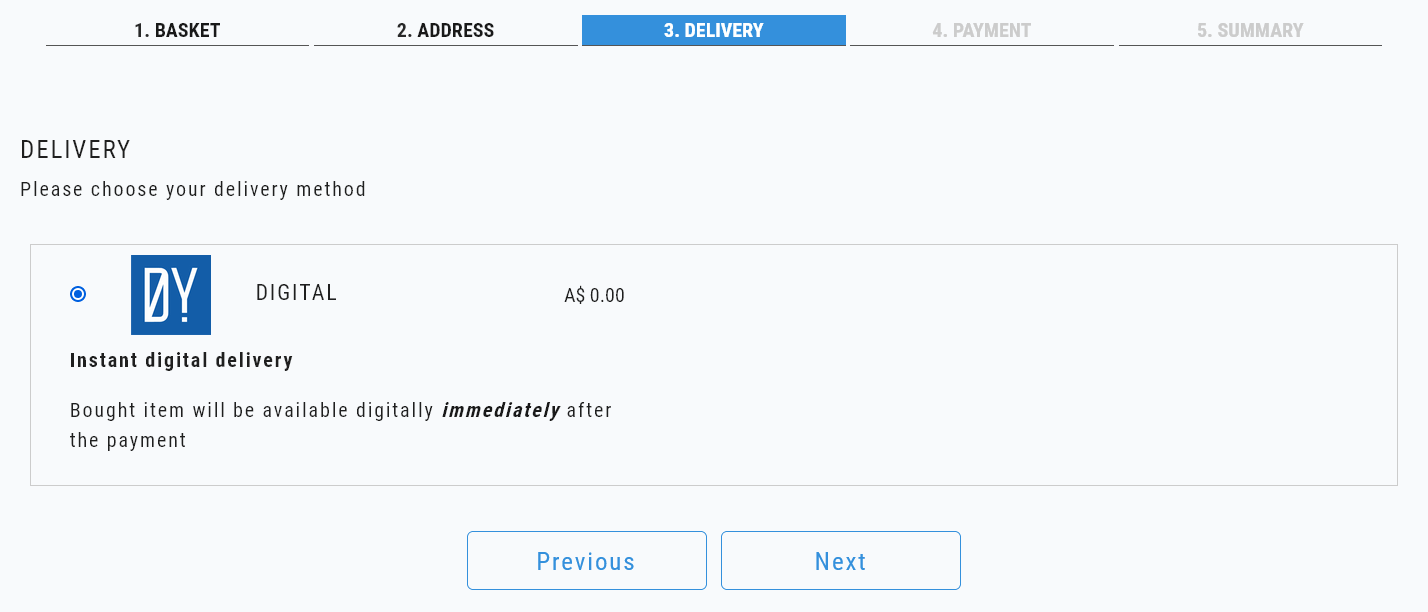 The only option here is a Digital delivery. It is free. When ready - click Next. To return to the previous step - click on Previous.
Clicking on Next will bring the user to the Payment step, as shown below.
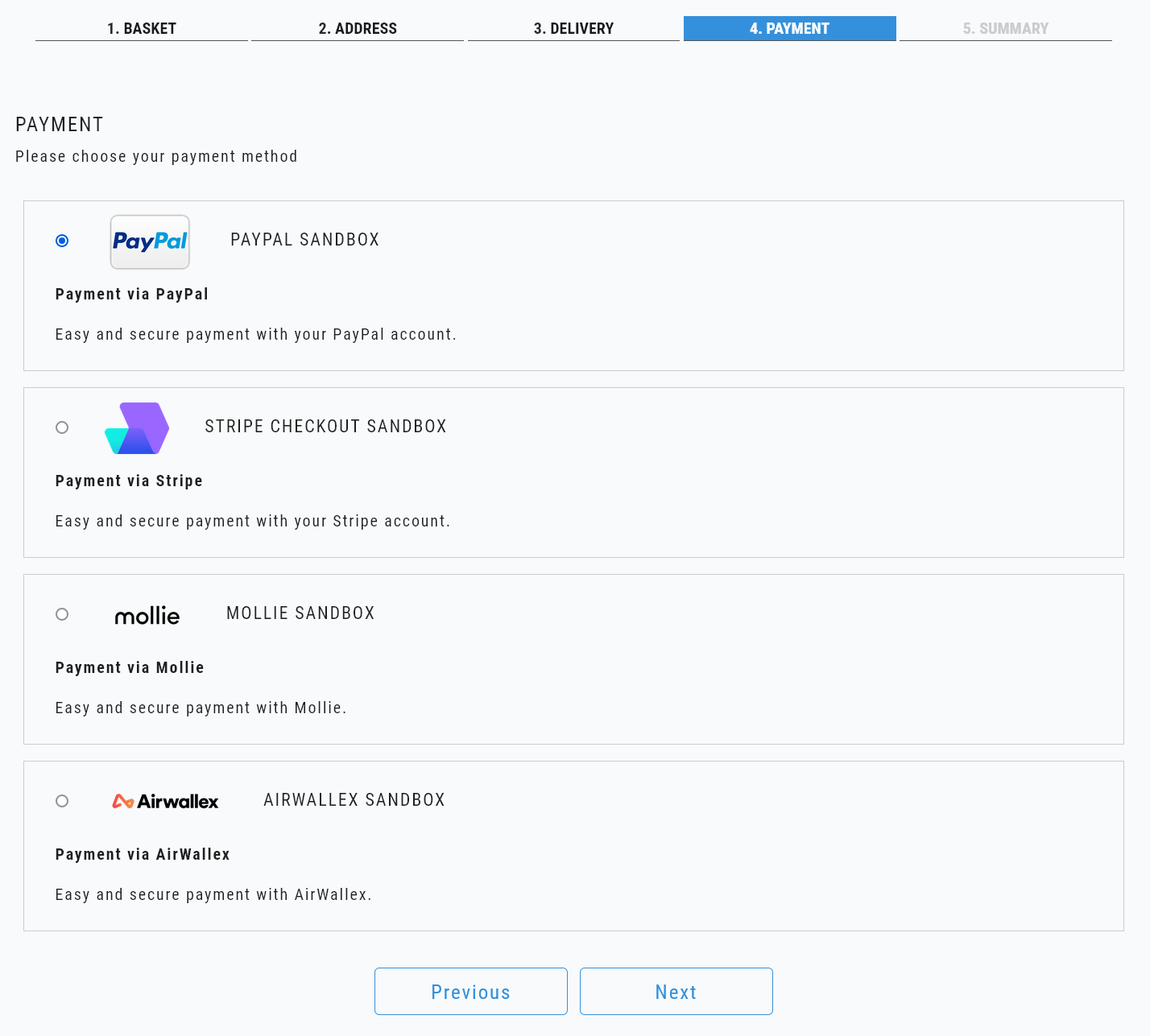 Users should select one of the available payment methods.
The following table outlines payment methods available in DataYeet through supported payment providers.
| Method | PayPal | Stripe Checkout | Airwallex |
|---|---|---|---|
| Cards | YES | YES | YES |
| Alipay | YES | YES | |
| POLI | YES |
The table below shows, for example, that card payment is supported by all payment providers, and AliPay is supported through Airwallex payment providers.
DataYeet does not store users' financial or payment details. DataYeet partners with several recognized payment providers.
When ready - click Next. To return to the previous step - click on Previous.
Clicking on Next will bring the user to the Summary window.
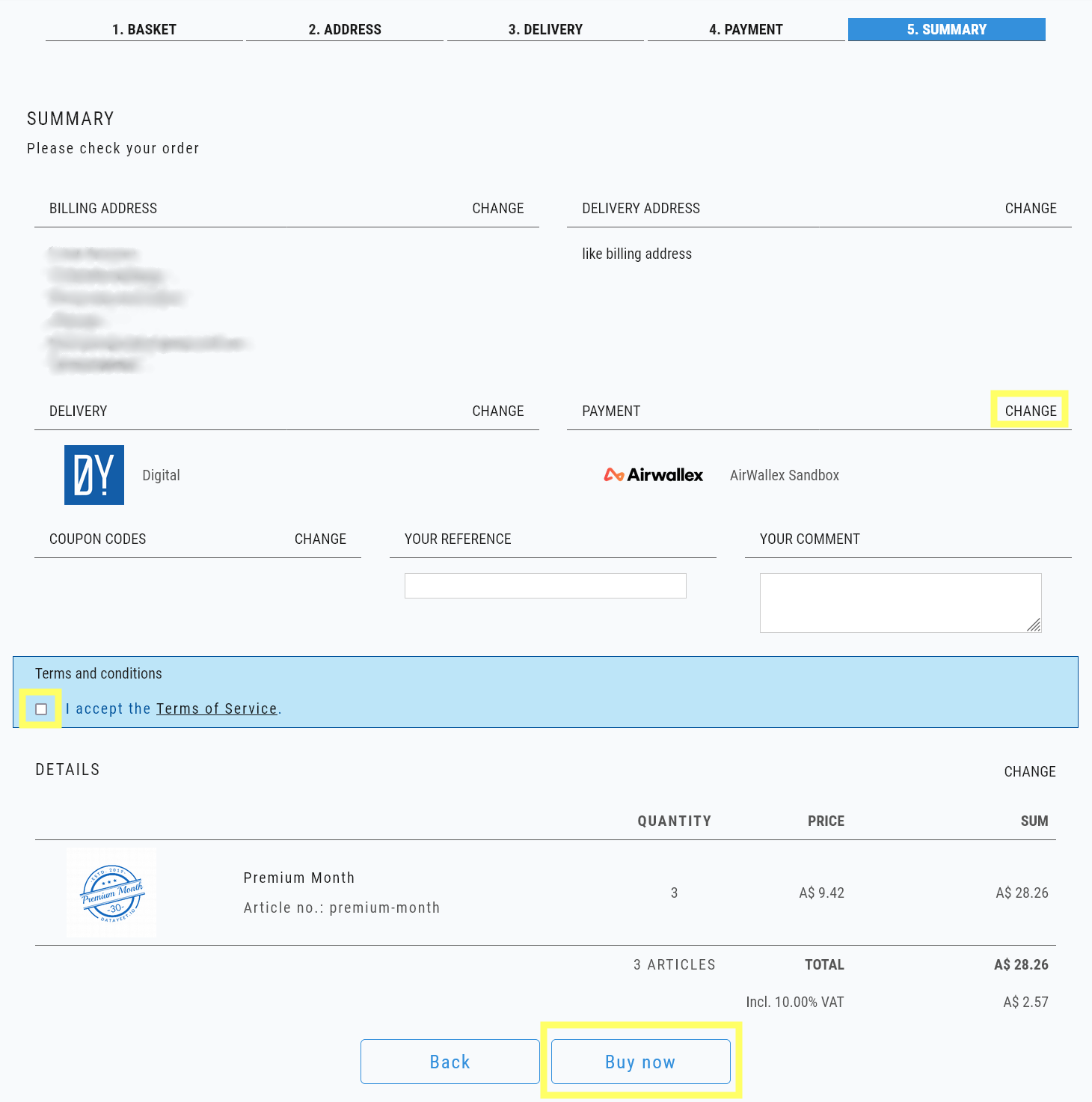 In this step, the users can still edit all selected options by clicking on Change next to the corresponding section.
When ready - check the box under Terms and Conditions and click on Buy now to complete the transaction.
Depending on the selected payment provider - one of the windows below will be opened. Follow the provider-specific instructions below.
PayPal
PayPal is an American multinational financial technology company operating an online payments system in the majority of countries that support online money transfers. It serves as an electronic alternative to traditional paper methods and provide services to online vendors, auction sites and many other commercial users.
When PayPal is selected - clicking Buy now will open a window similar to the picture below.
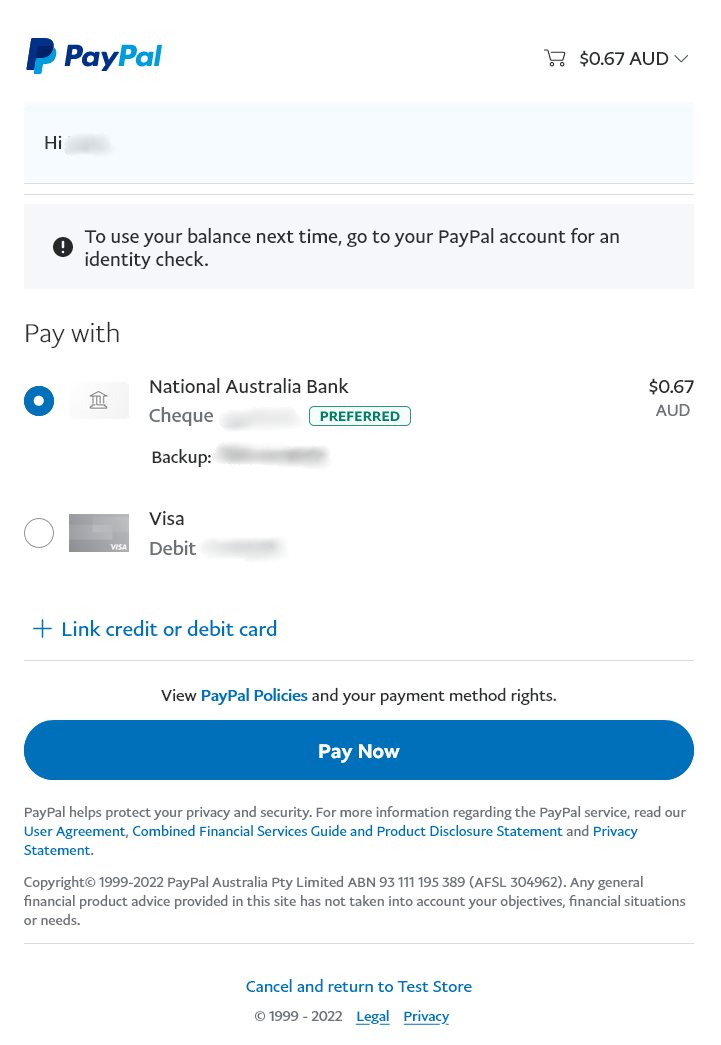
To complete the payment - provide card details or select the details stored with PayPal, click on Pay Now. Once the payment is processed - the user will be redirected to the DataYeet payment confirmation page.
Stripe Checkout
Stripe is an Irish-American financial service company dual-headquartered in San Francisco, United States and Dublin, Ireland. The company primarily offers payment processing software and application programming interfaces (APIs) for e-commerce websites and mobile applications.
When Stripe Checkout is selected - clicking Buy now will open a window similar to the picture below.
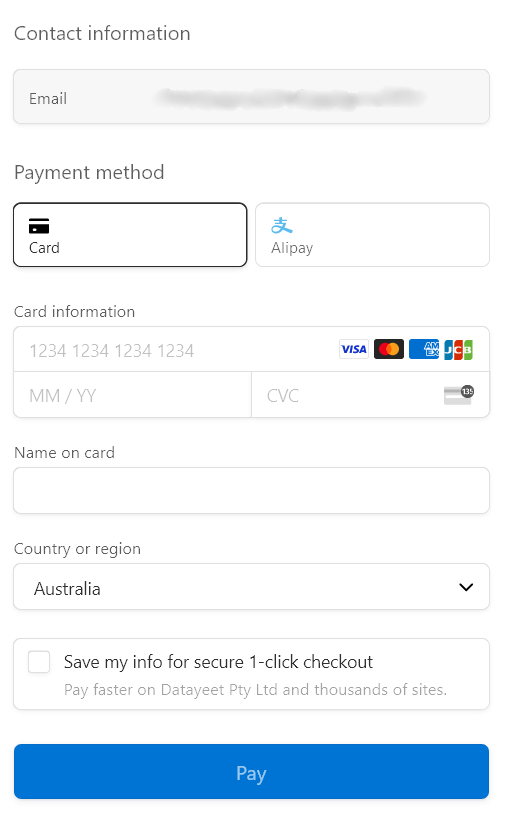
To complete the payment - provide card details or select the details stored with Stripe, click on Pay. Once the payment is processed - the user will be redirected to the DataYeet payment confirmation page.
Airwallex
Airwallex is an Australian financial services platform and payments company. The company provides businesses with a way to receive payments in world major currencies, including USD, AUD, GBP, EUR and HKD. Airwallex supports card payments, Alipay, POLI and more.
When Airwallex is selected - clicking Buy now will open a window similar to the picture below.
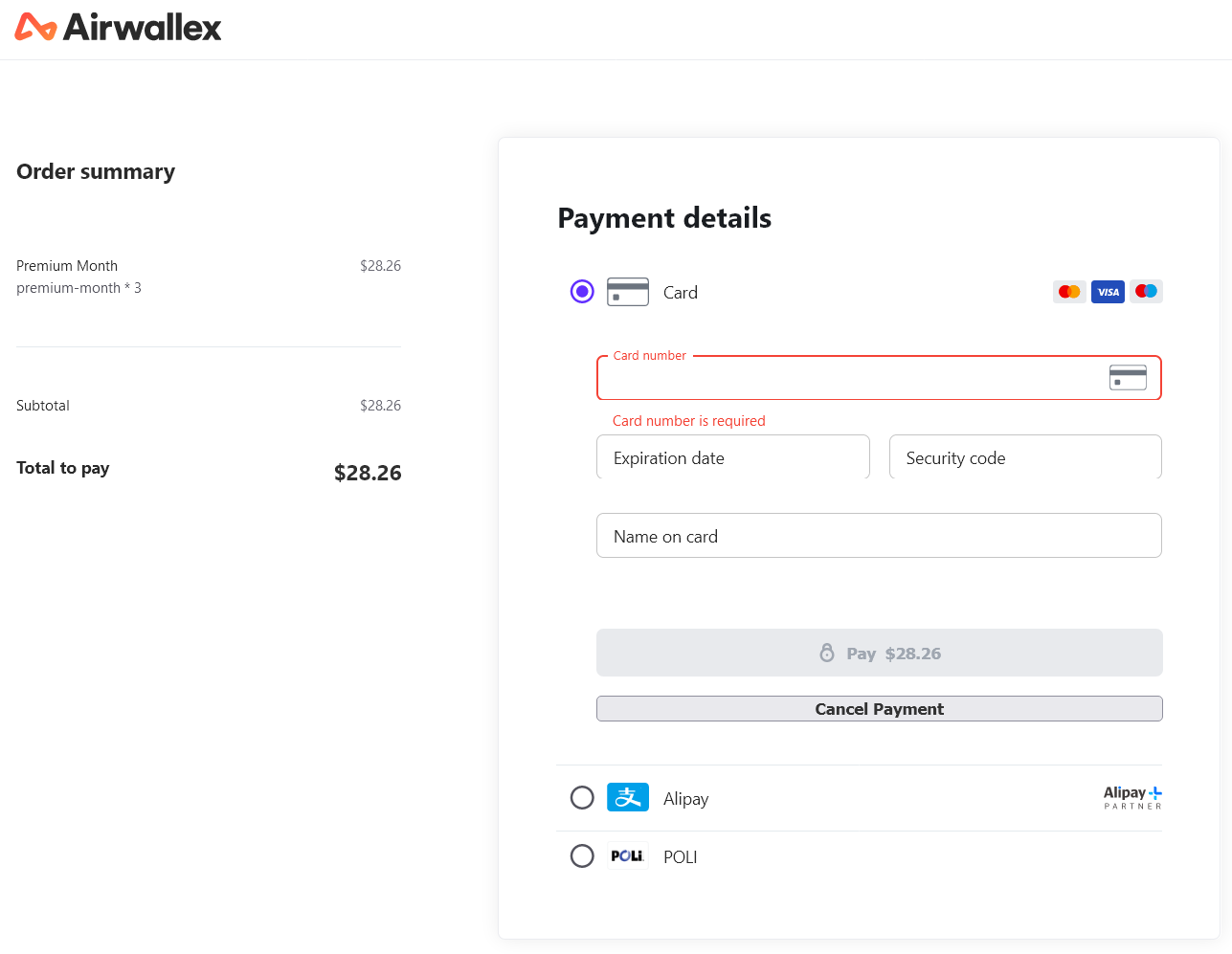 To complete the payment - select one of the supported methods, fill in details, click on Pay. Once the payment is processed - the user will be redirected to the DataYeet payment confirmation page.
Payment Confirmation
On successful payment, users will be redirected to Thank You page. An example is shown below.
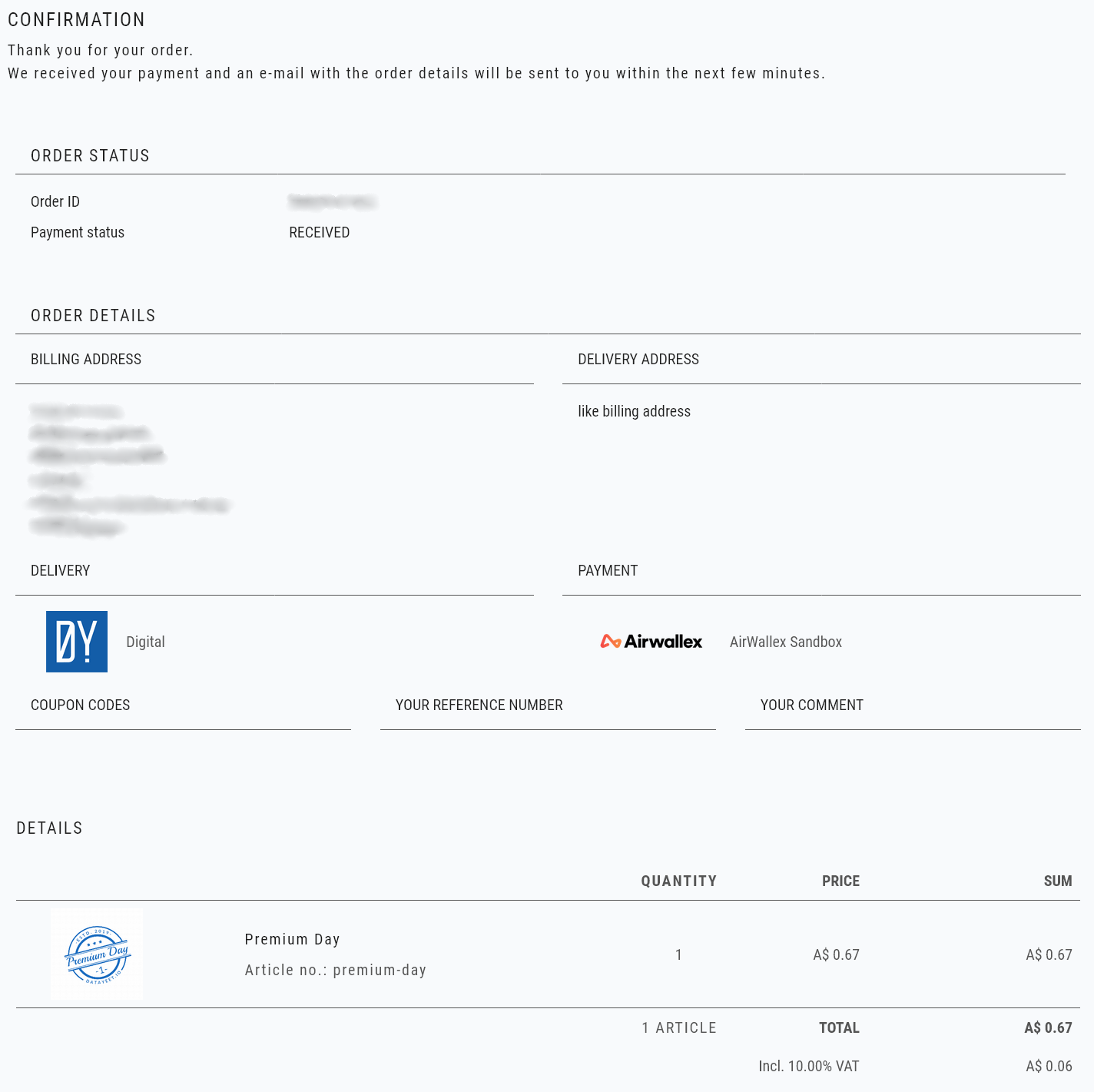
If the payment is cancelled by the user or it does not go through, the user will be redirected to the page as shown below.
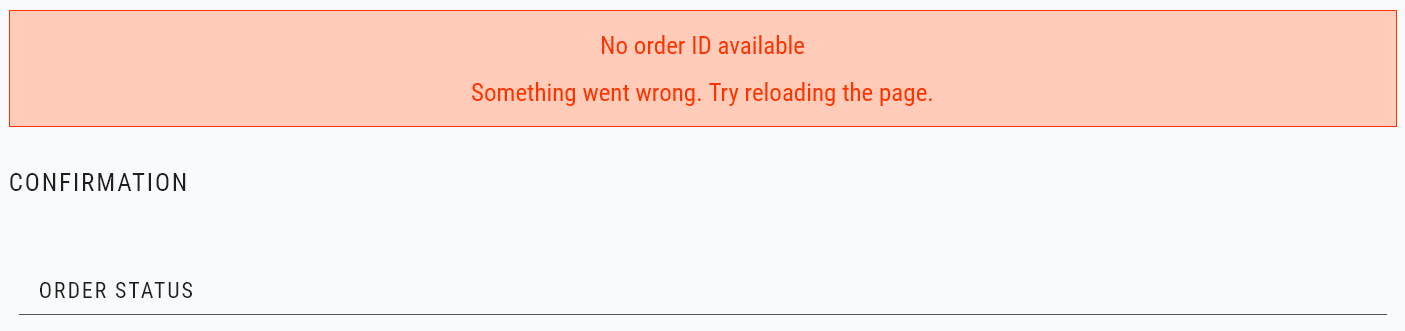
In this case, try reloading the page.
Next is How-to Search the Site.